S3 Upload Object Event triggers a Slack message
S3 is one of the most popular services provided by Amazon Web Services.
S3 service allows the user to store objects through a web service interface.
This guide will help you get a Slack notification whenever a new object gets uploaded to your S3 service.
Get Started
Step 1: Configure the Source
- Log in to Vanus Connect and choose the S3 Upload Object Event triggers a Slack message template.
Step 2: Get Access key
Go to Aws Management Console and log in using your root account.
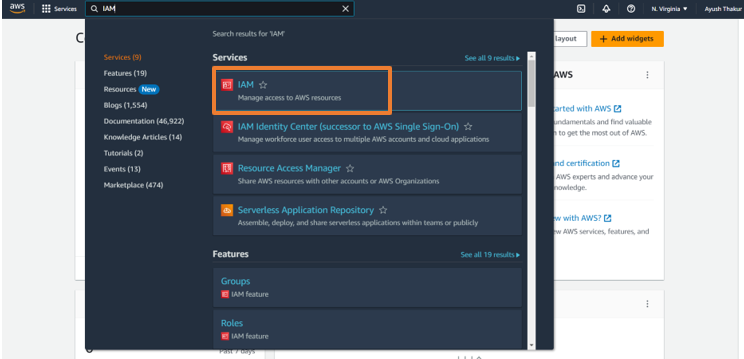
Search for IAM services and click on it.
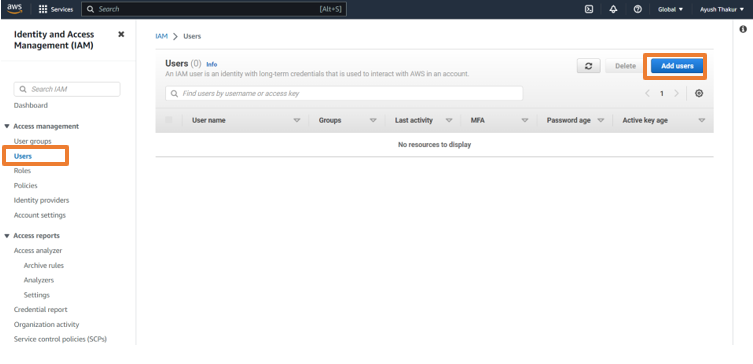
- Go to Users on the left sidebar and click on Add User.
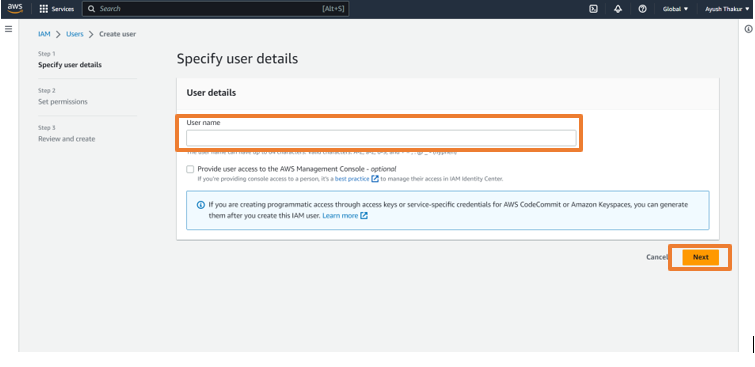
- Give a name to the user and click on Next.
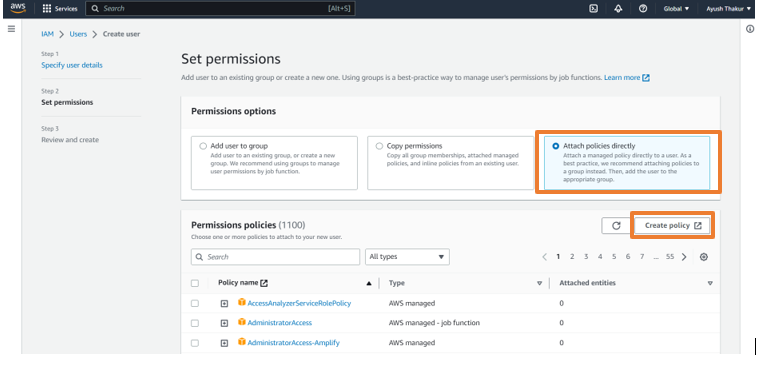
- Select Attach policies directly and click on Create Policy.
- Click on S3 and search for PutBucketNotification and select it.
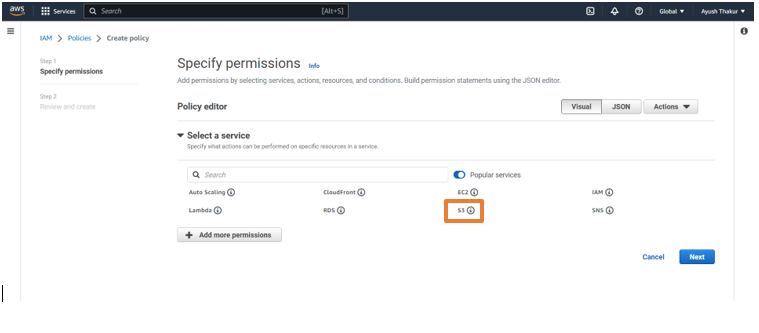
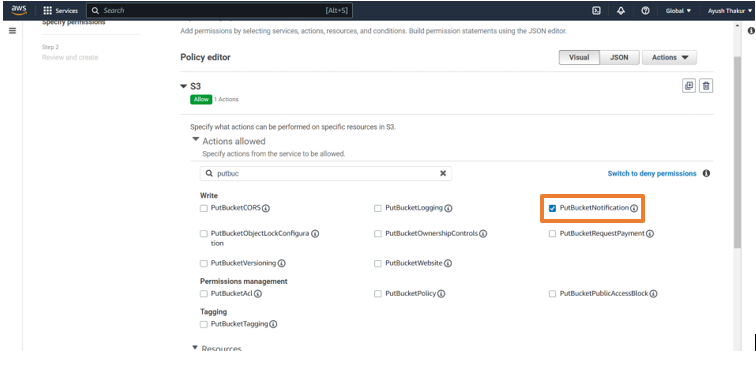
- Click on Add more permissions and search for SQS and click on it.
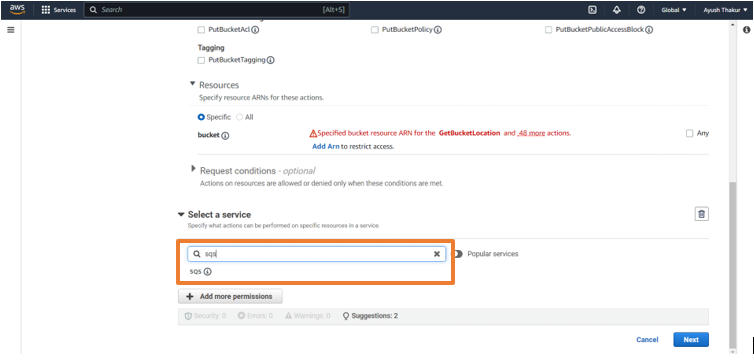
- Now search these policies and add them:
- ListQueues
- GetQueueUrl
- ReceiveMessage
- GetQueueAttributes
- CreateQueue
- SetQueueAttributes
- DeleteMessage
and press Next.
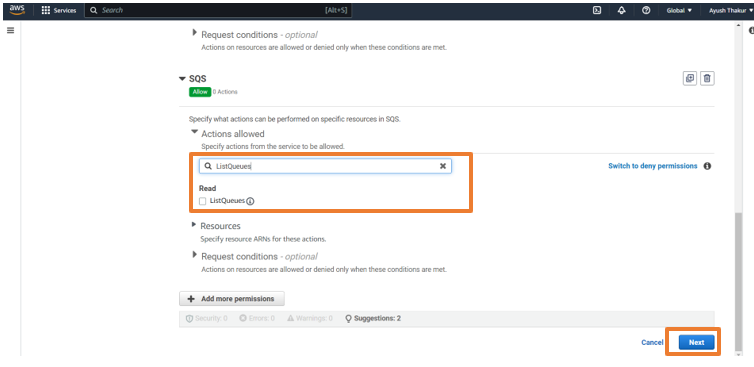
- Add a name to your policy and click on Create Policy.
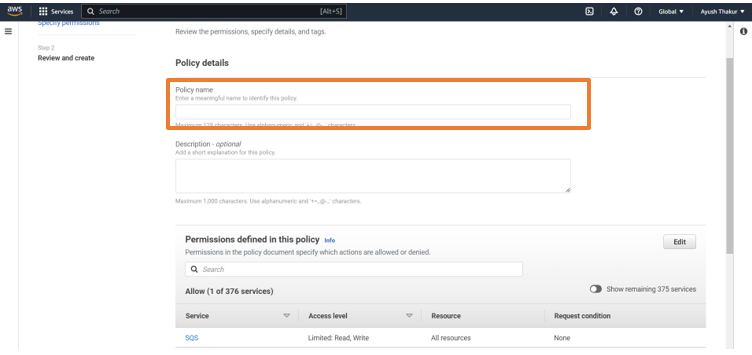
Go back to the previous tab and refresh it.
Search for the custom policy we have created and select it and click Next.
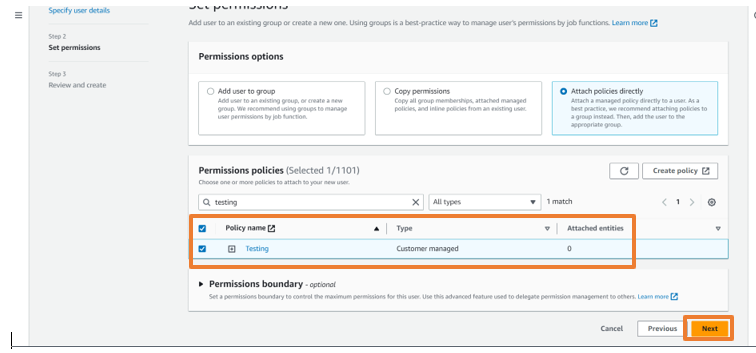
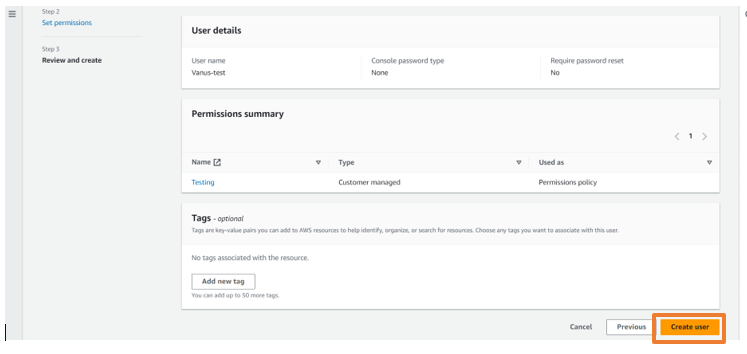
- Review it and click Create User.
- Click on the created user and go to the Security and Credentials tab.
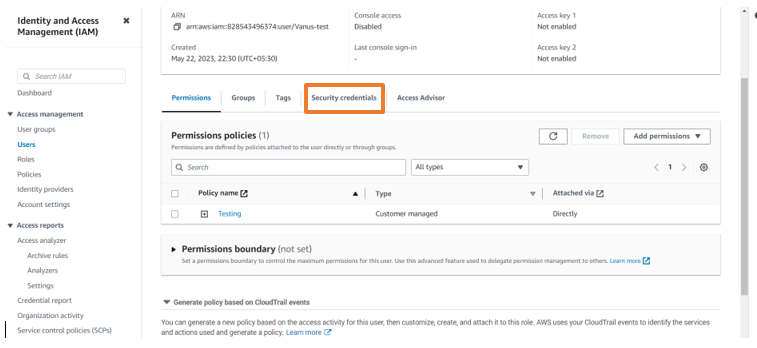
- Scroll down and click Create access key.
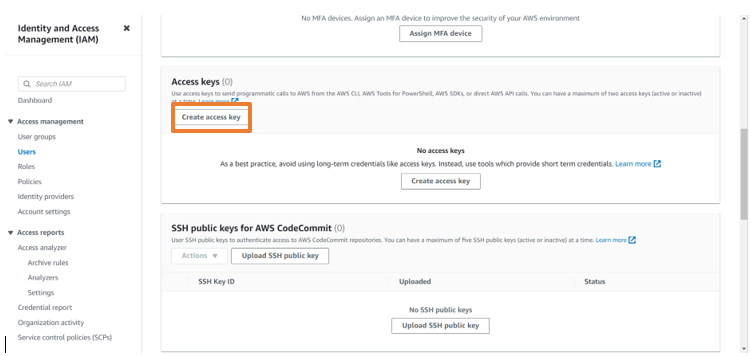
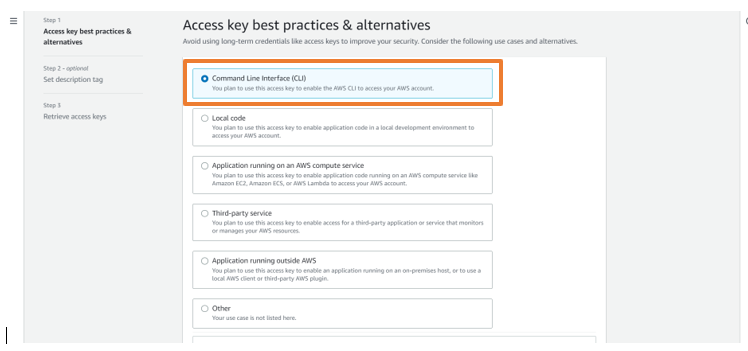
- Select Command line interface CLI, press Next and click Create access key.
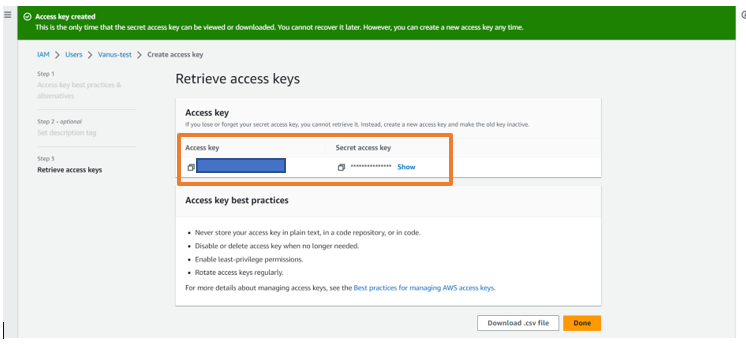
- Copy the access key and secret access key and paste them into the Connection setup.
Step 3: Create ARN number
- Go to the AWS console and search for S3 service and click on it.

- Click on Create New bucket.
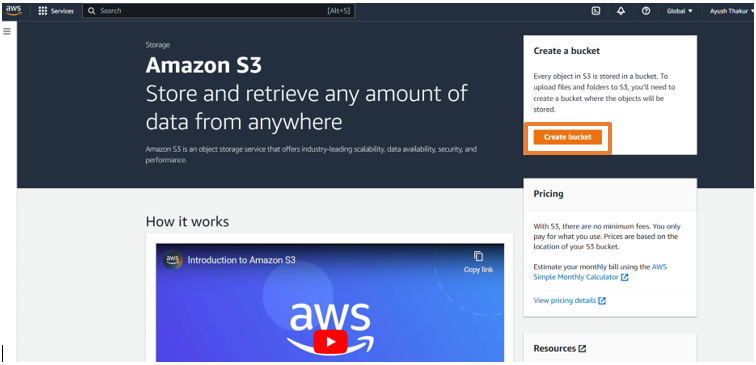
- Give a name to the bucket and click Create Bucket.
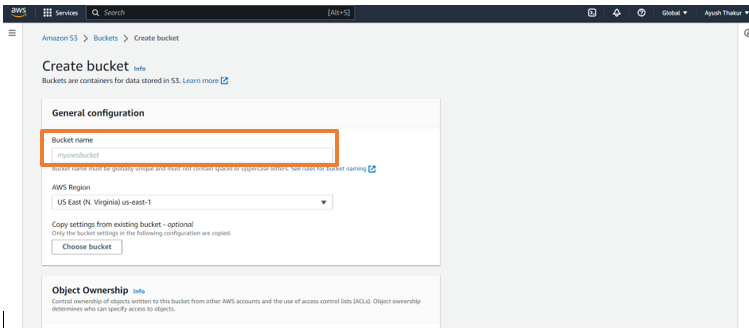
- Open the created bucket and go to properties tab.
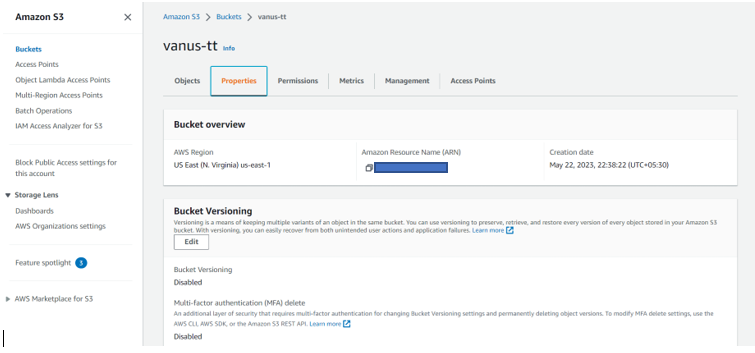
- Copy the ARN Number and paste it into the connection setup and click Next.
Step 4: Configure Sink - Get the Discord Webhook URL
- Open Slack API in your browser, create a Webhook URL and copy it.
Tip: For detailed steps on how to obtain the Slack Webhook URL, refer to the blog Get Your Slack Webhook URL - A Quick Integration Guide.
Paste the copied URL in the Webhook URL in the Sink Configuration and click Submit.
Your connection has been successfully created.