webhook
Configuring Dynatrace to Send Webhook Events
Step 1: Configure webhook
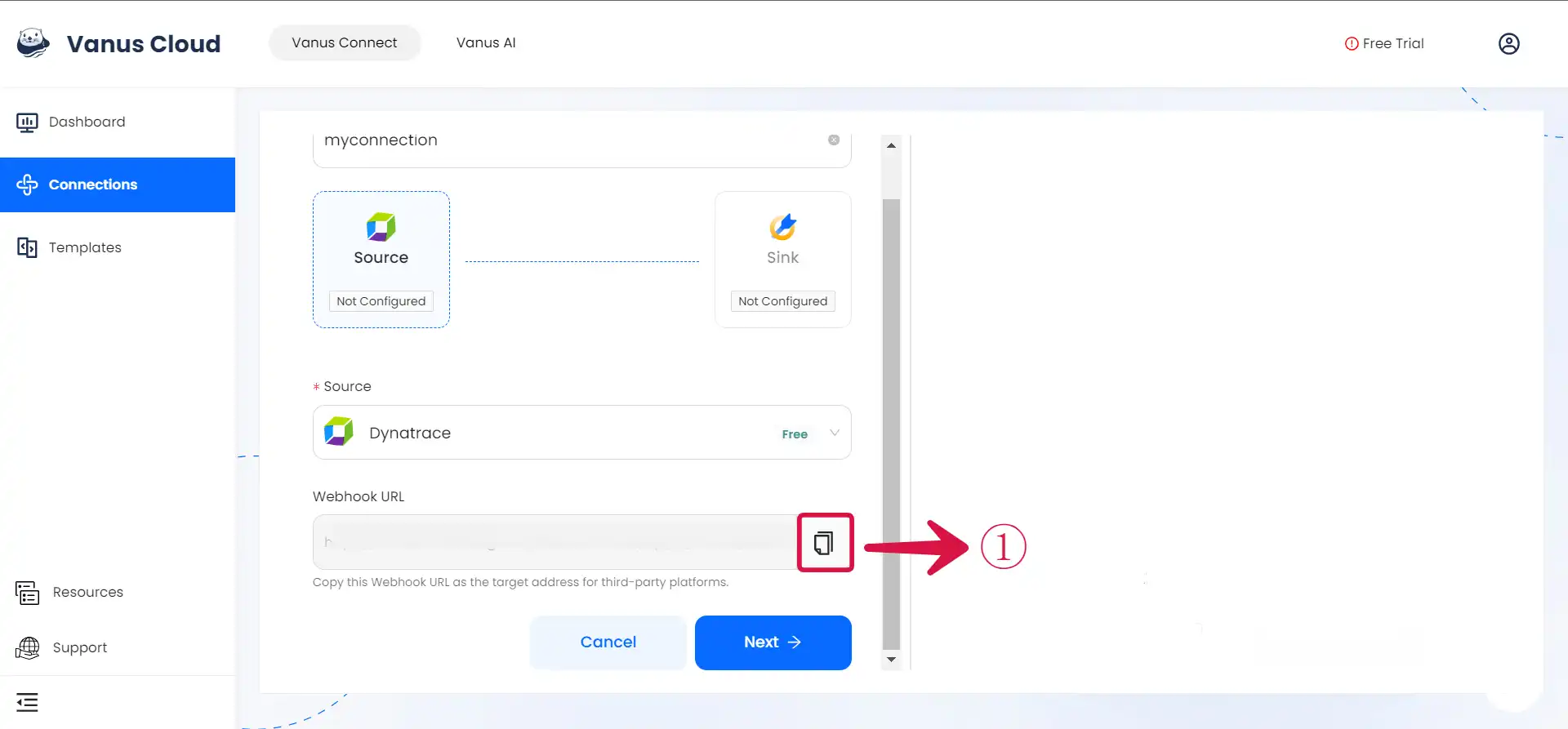
- Click the copy icon① to copy the webhook url.
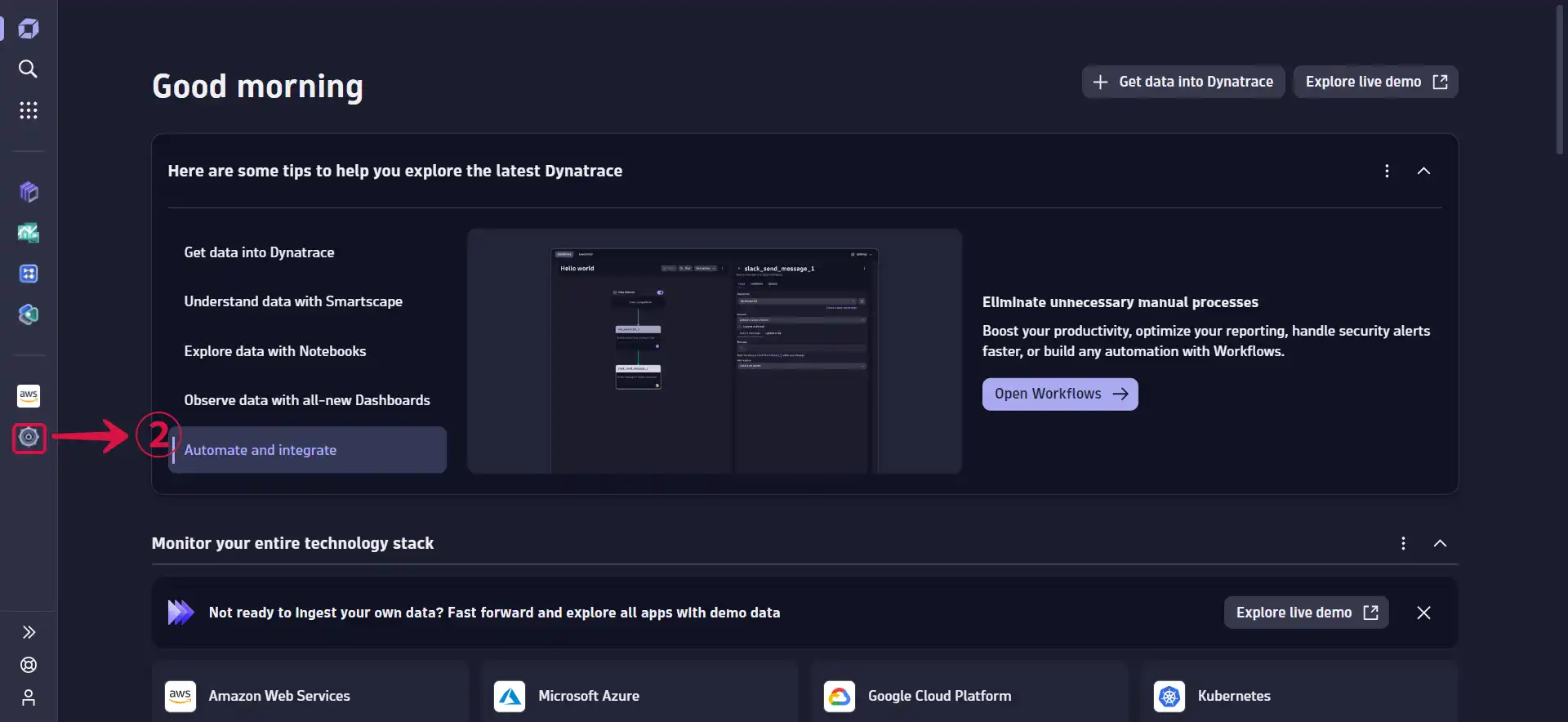
Log in to your Dynatrace account.
Navigate to the Settings page by first clicking on the gear icon②.
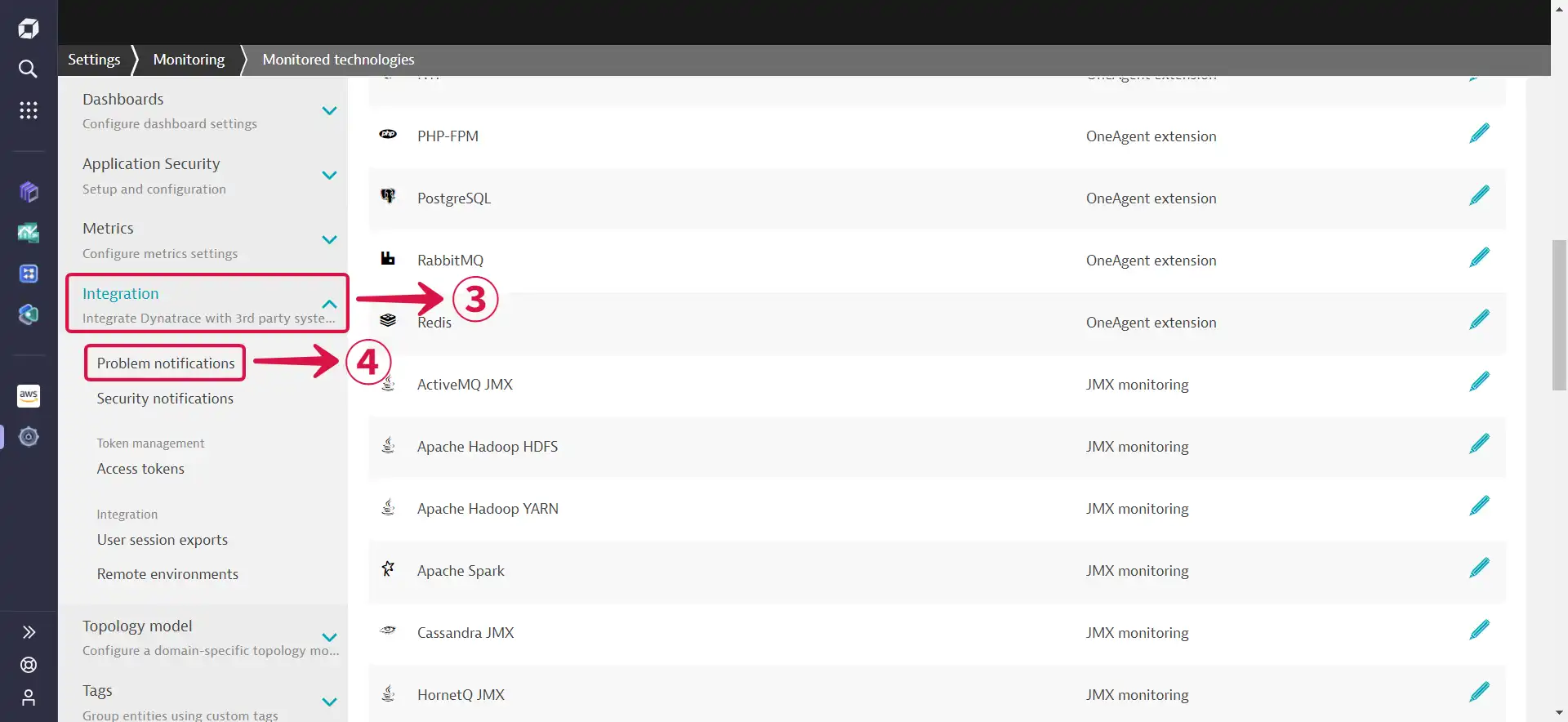
- Scroll downwards and click on Integration③ then select Problem notifications④.
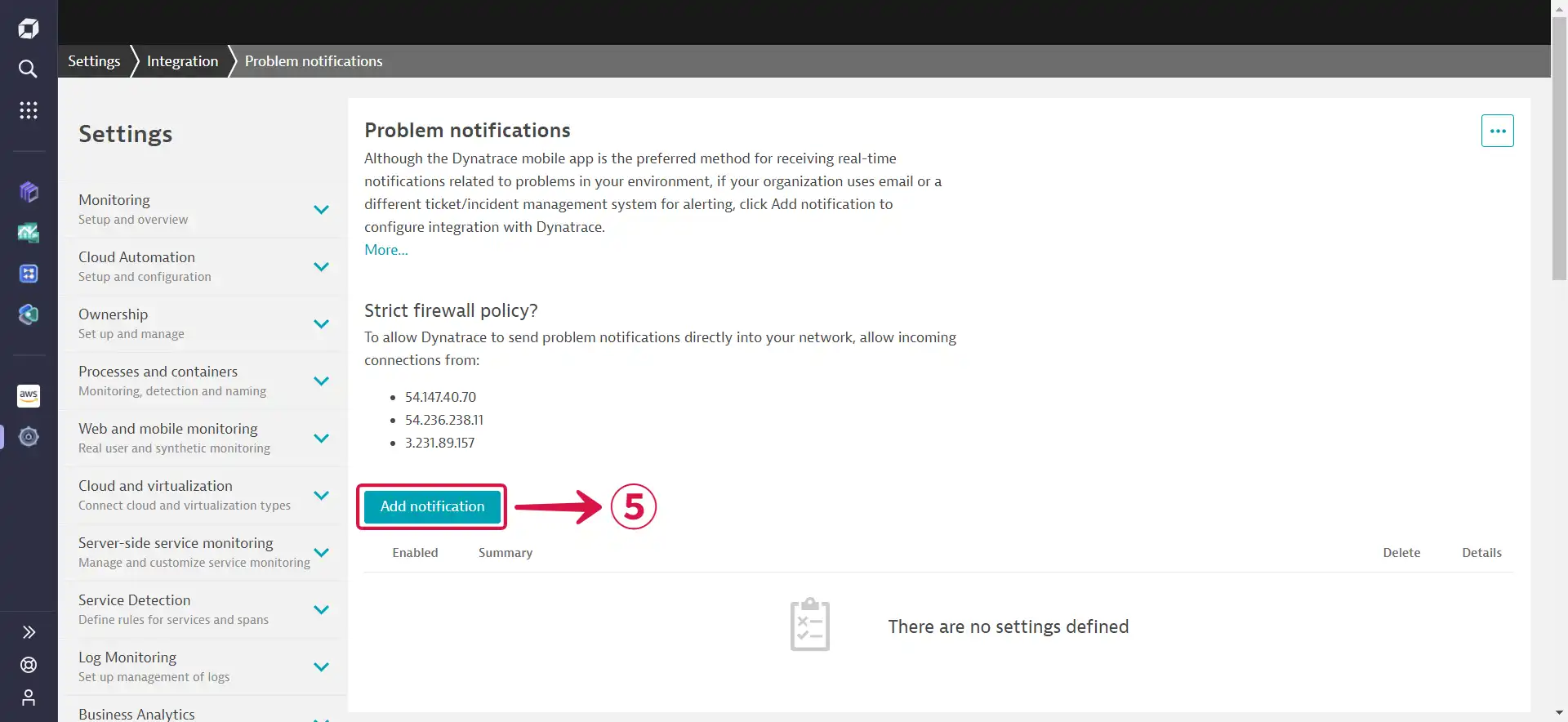
- Click on Add notification⑤.
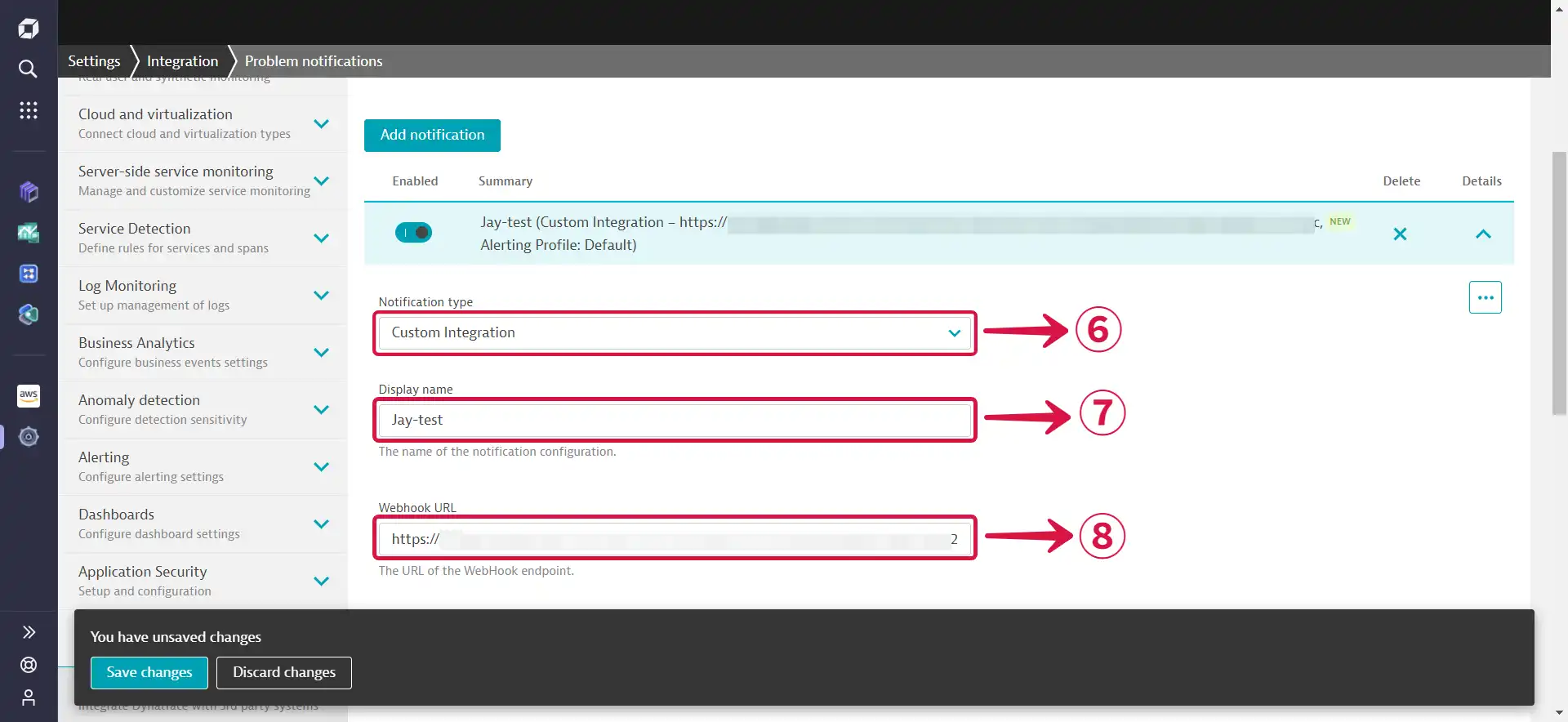
- Select Custom Integration⑥ as the Notification type, choose your preferred Display name⑦, and paste the Webhook URL you copied previously into the Webhook URL⑧ field.
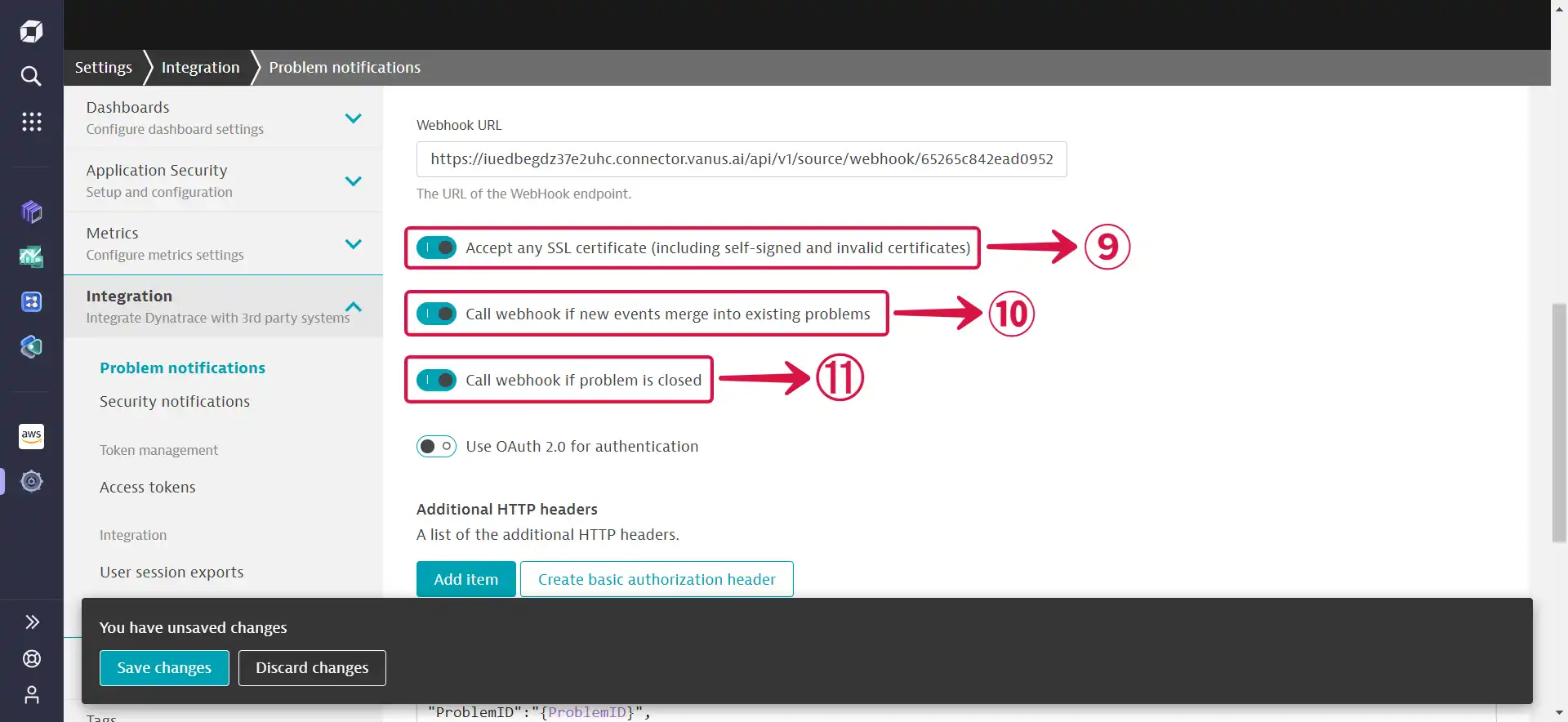
- Toggle the buttons as shown below to Accept any SSL certificate (including self-signed and valid certificates)⑨, Call webhook if new events merge into existing problems⑩ and Call webhook if problem is closed⑪.
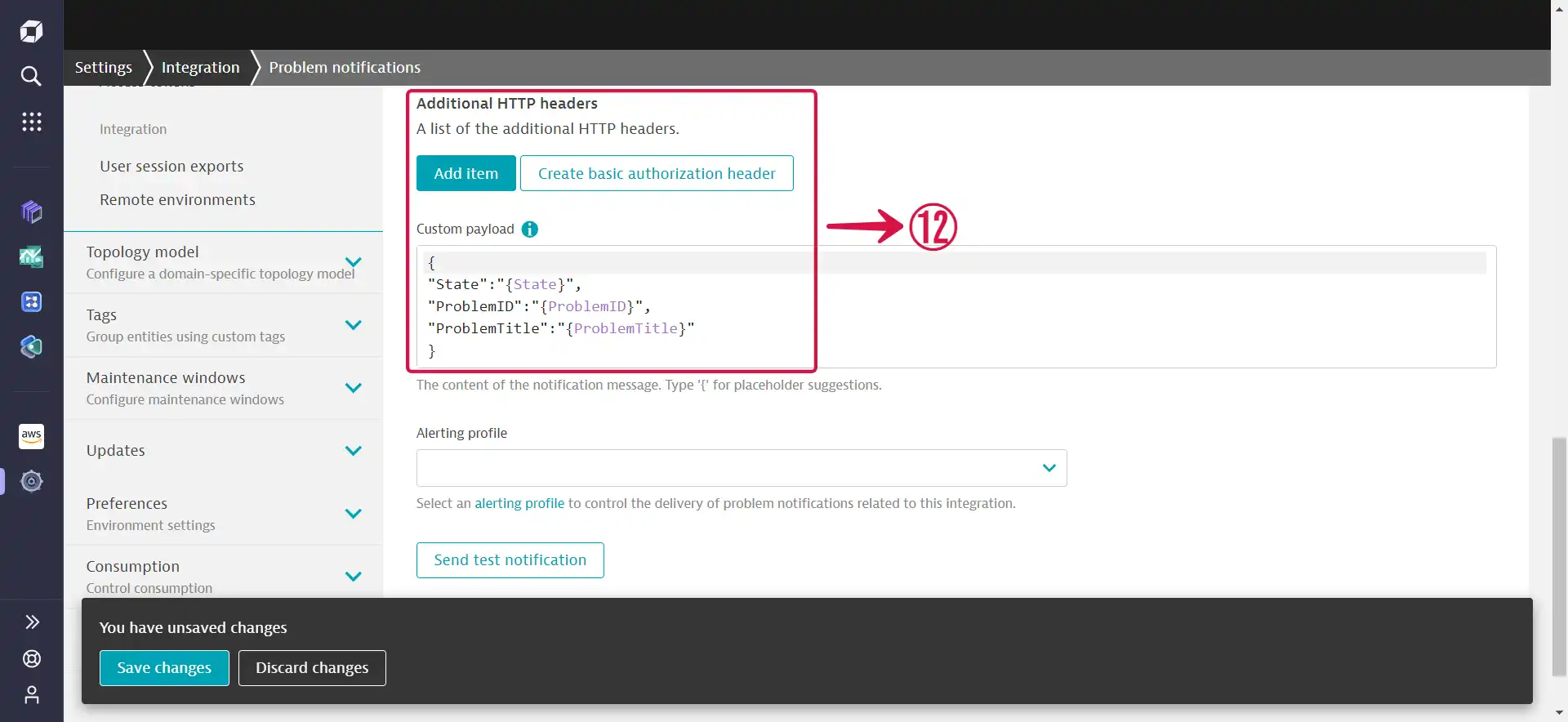
- Leave the Additional HTTP headers⑫ section just the way it is.
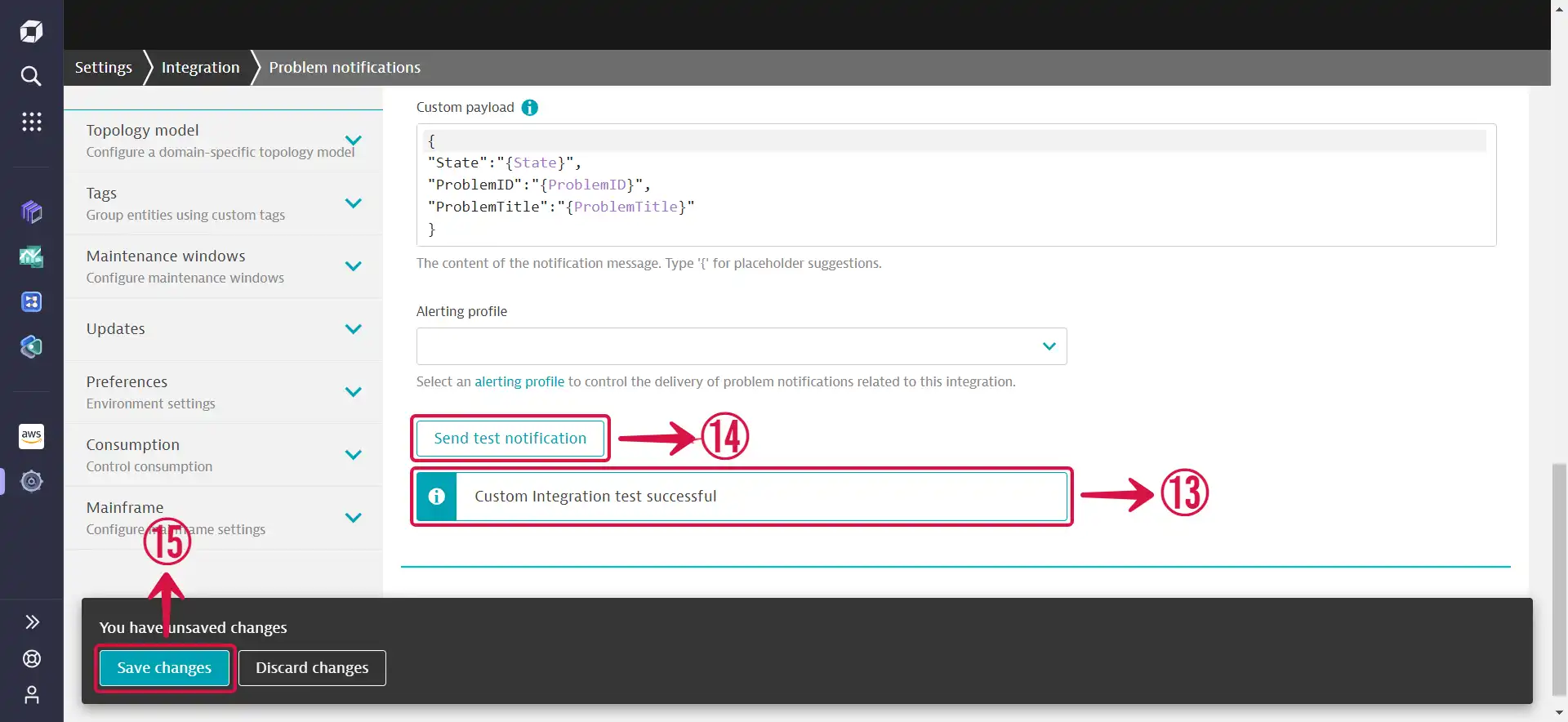
- If the
Custom Integration test successful⑬ message appears after pressing the Send test notification⑭ button, continue by clicking the Save changes⑮ button to save the adjustments.
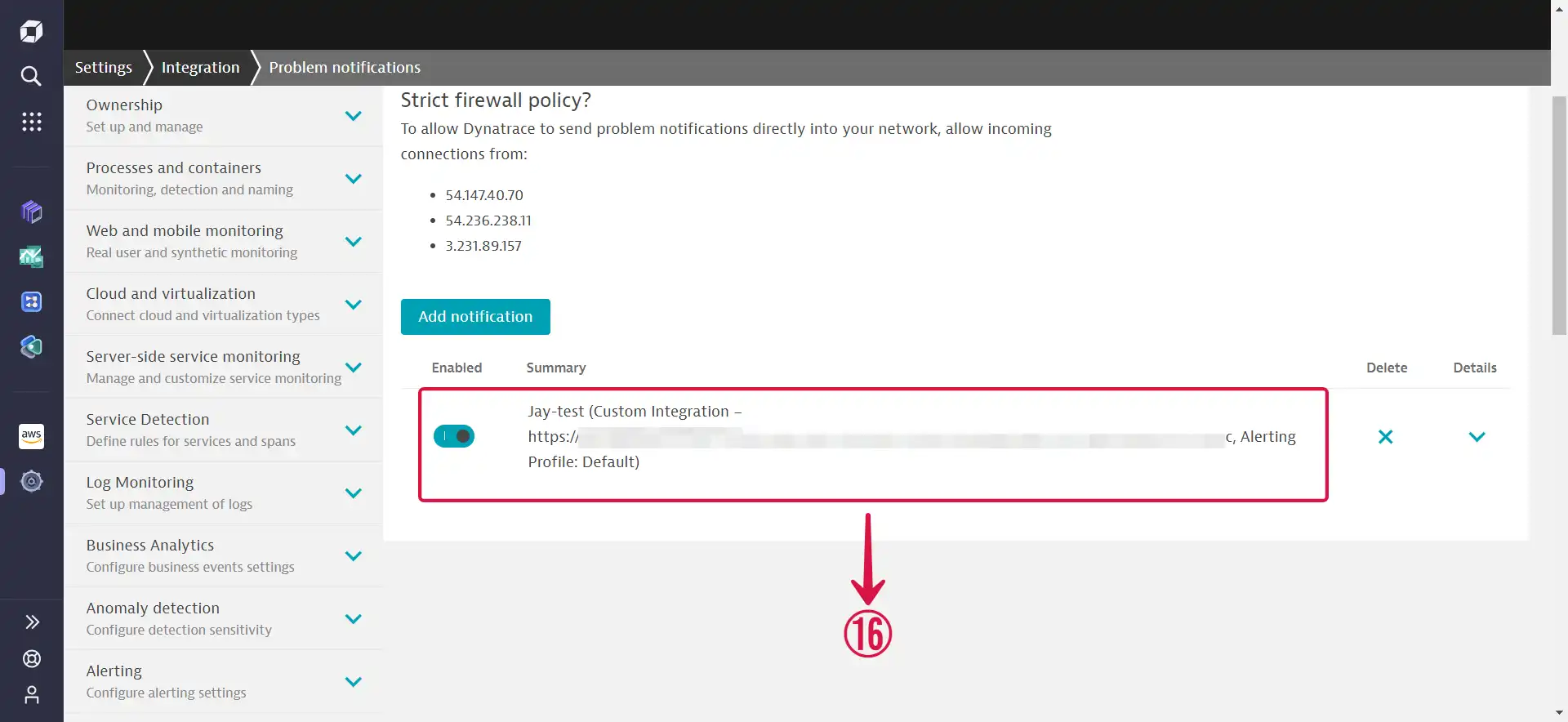
- If successful, you should see this⑯.