Configuring Jenkins to Send Webhook Events
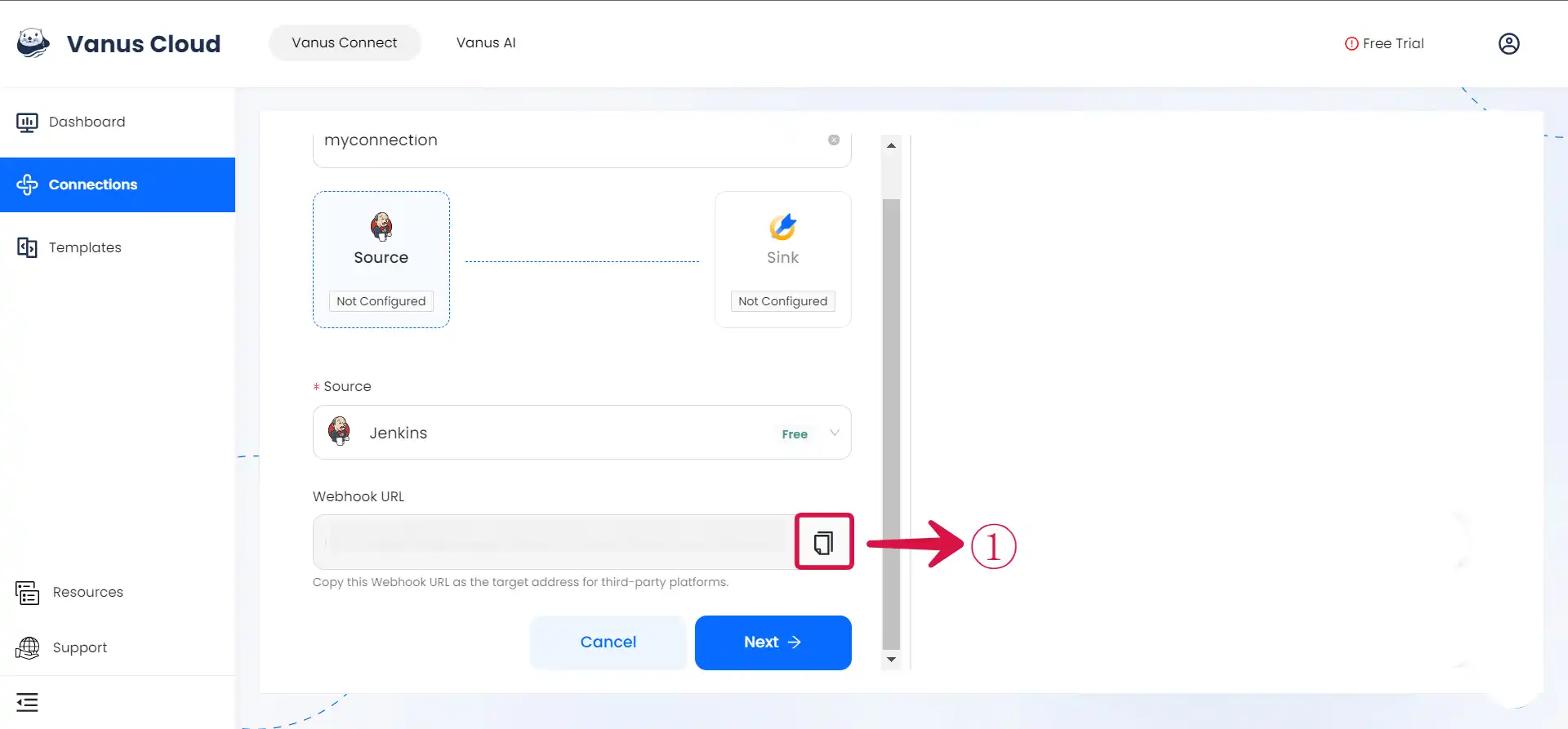
Step 1: Configure webhook
- Click the copy icon① to copy the webhook url
- Log in to your Jenkins account.
Step 2: Send Jenkins Event
- Plugin
- Script
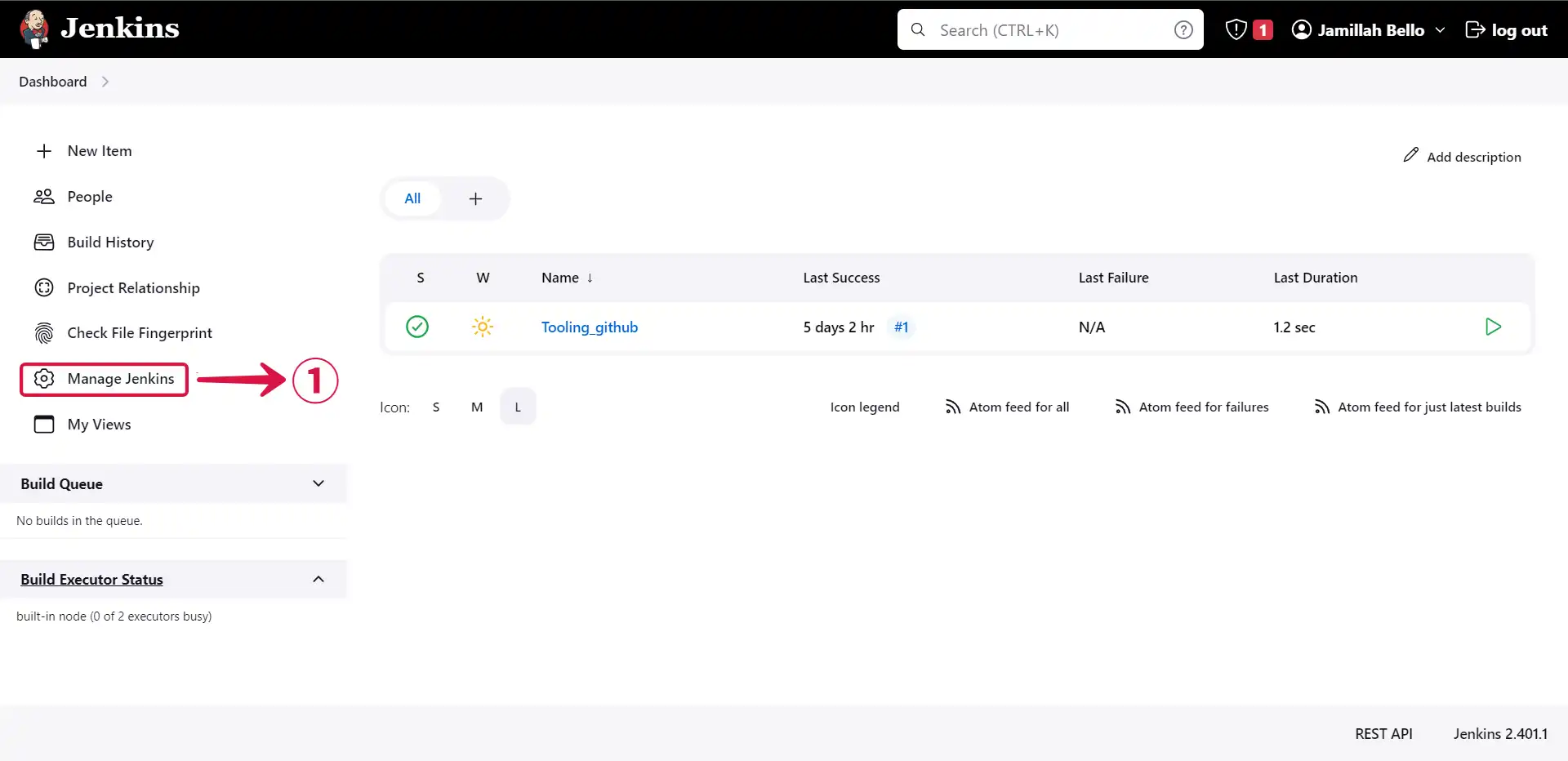
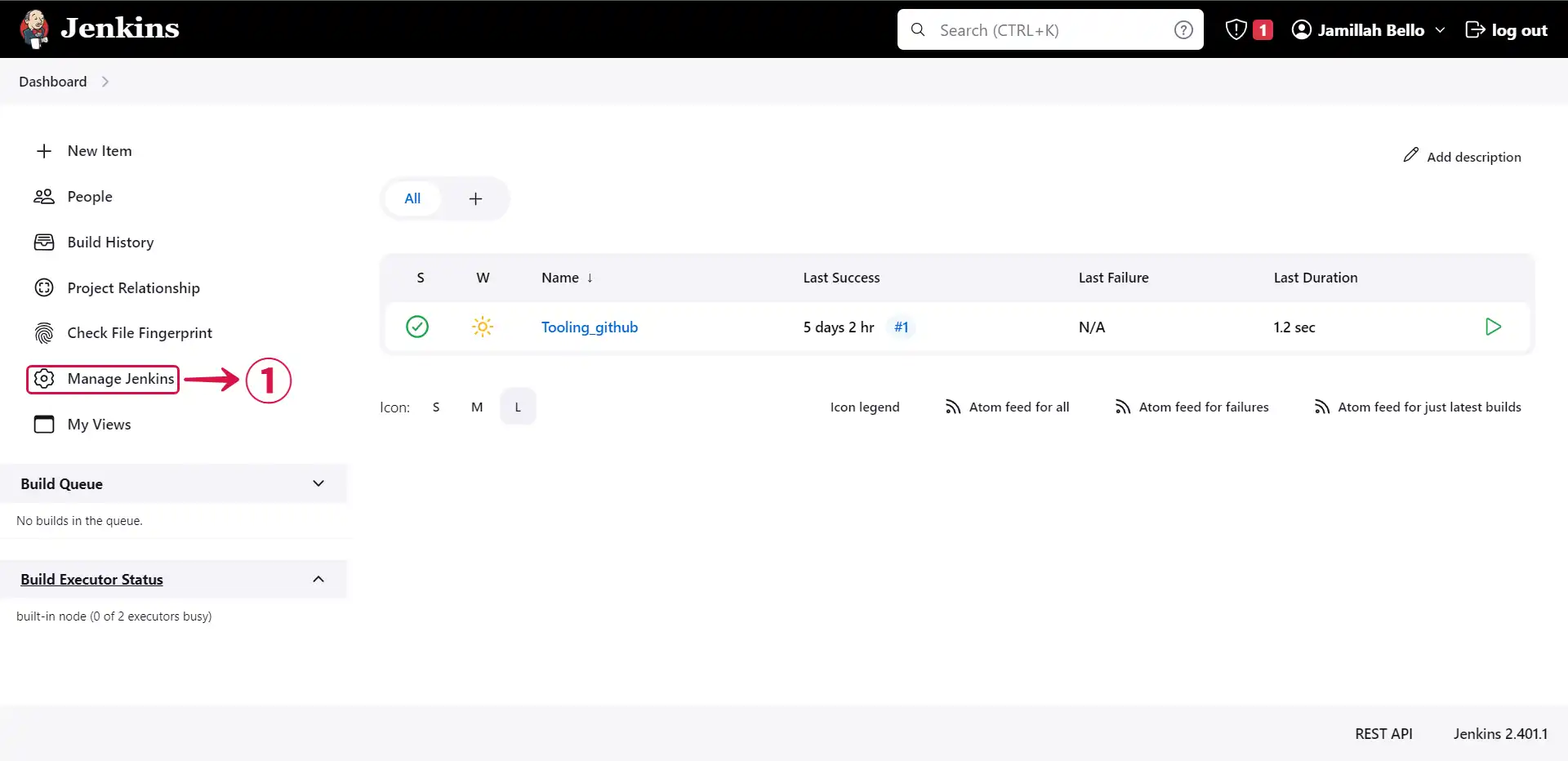
- Click on Manage Jenkins①.
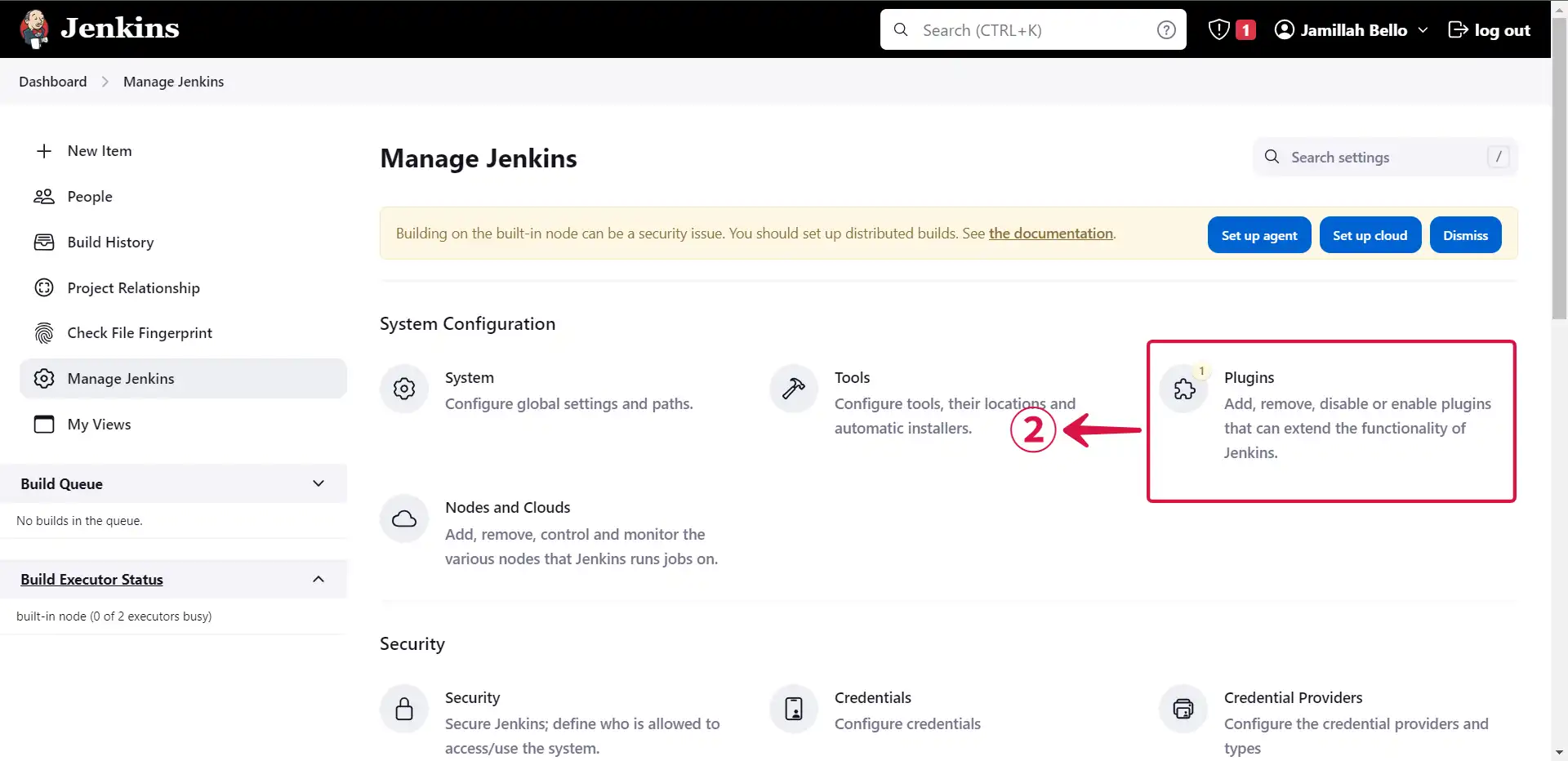
- Navigate to the Plugins② section.
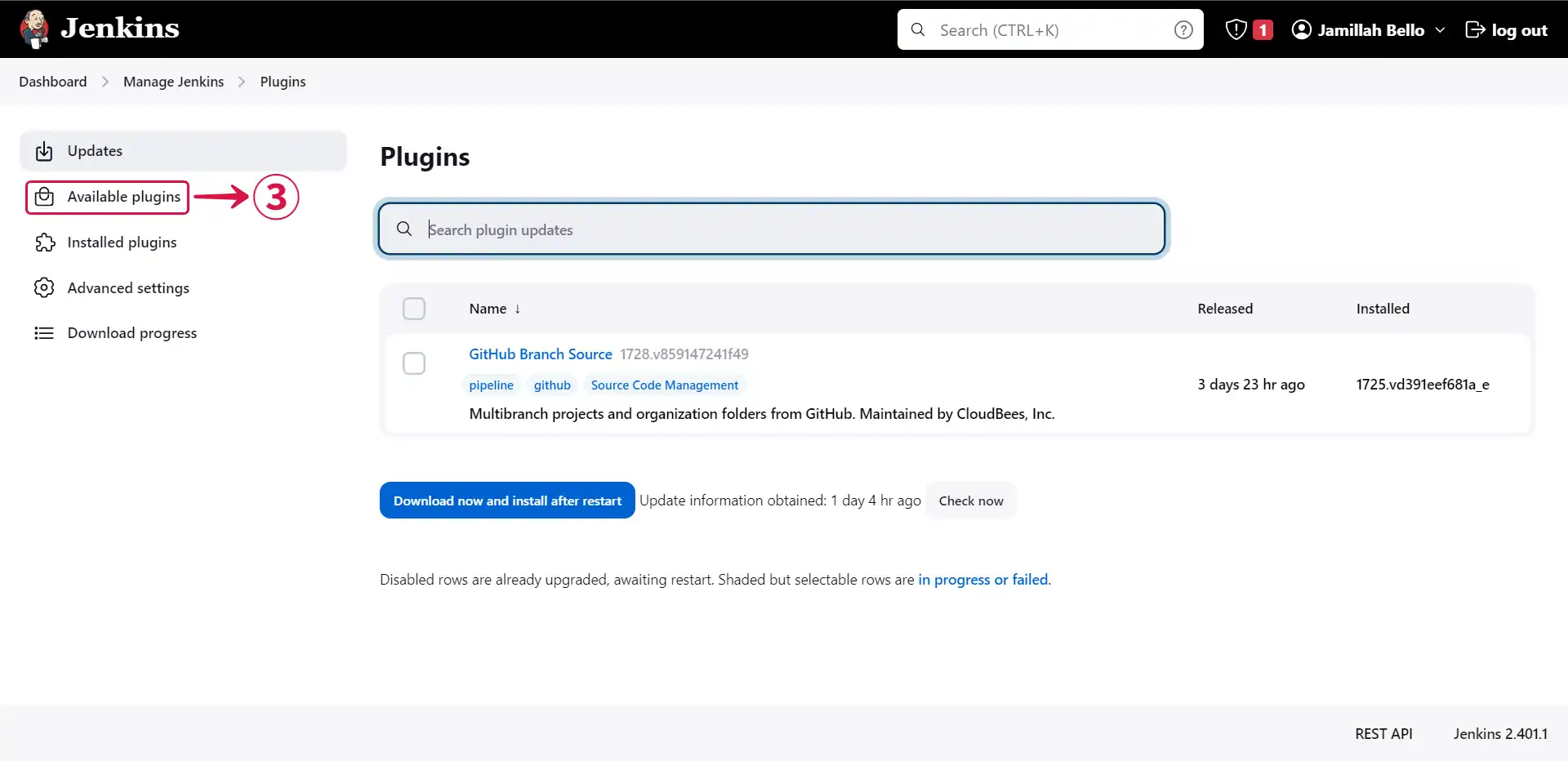
- Click on Available plugins③.
- Search for http request④.
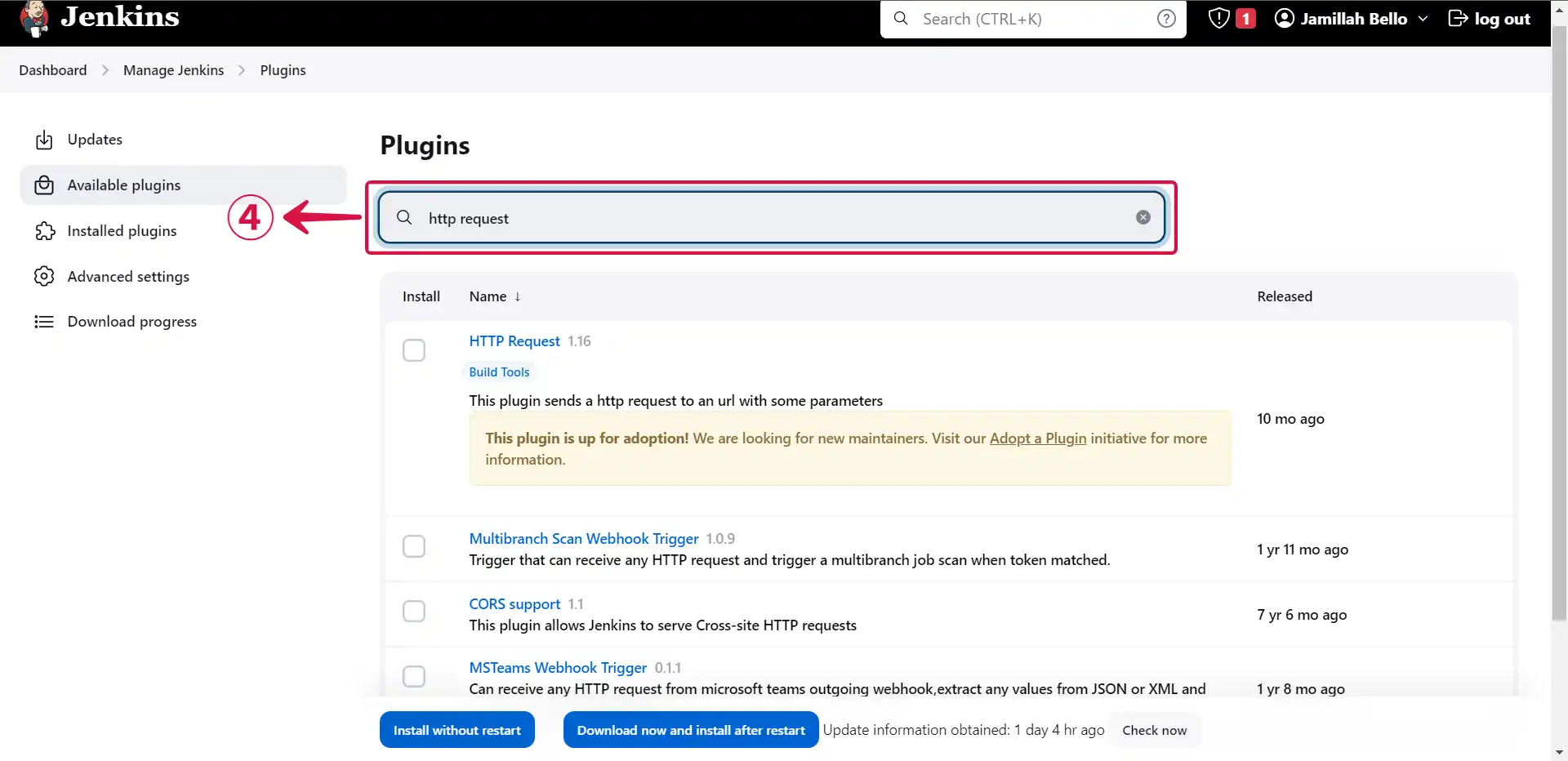
- Select⑤ the plugin and click on Install without restart⑥.
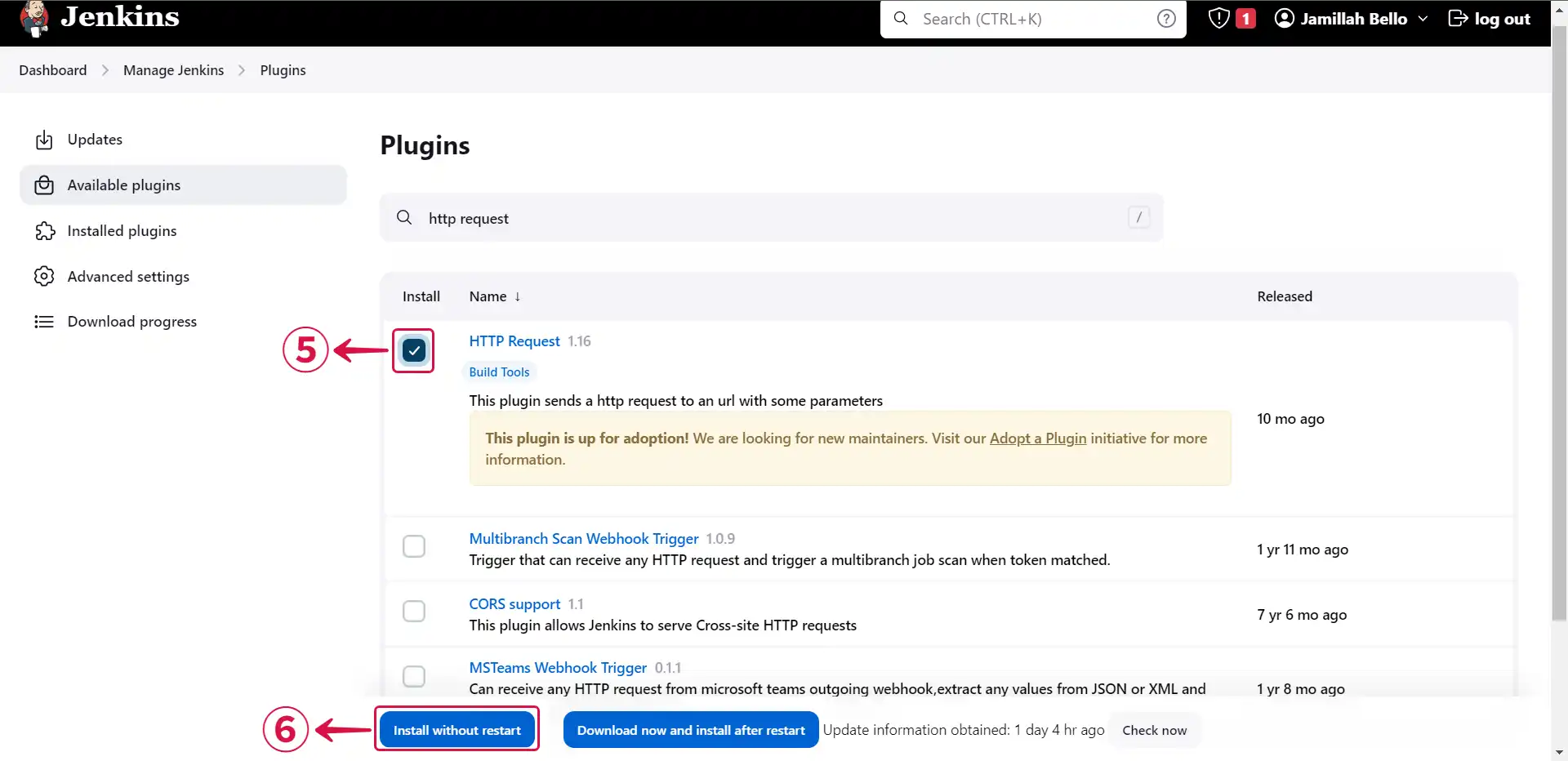
- Click on Go back to the top page⑦.
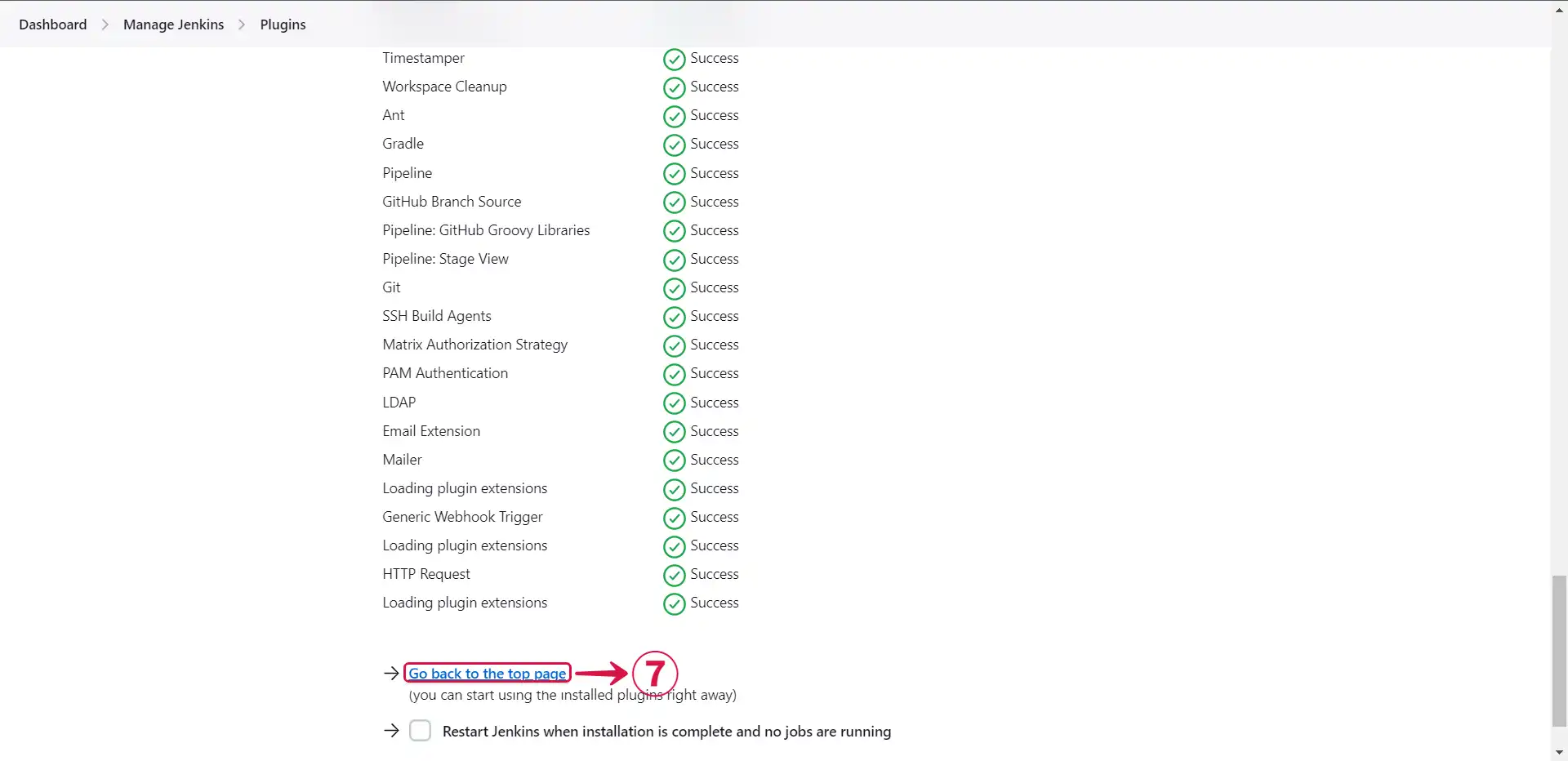
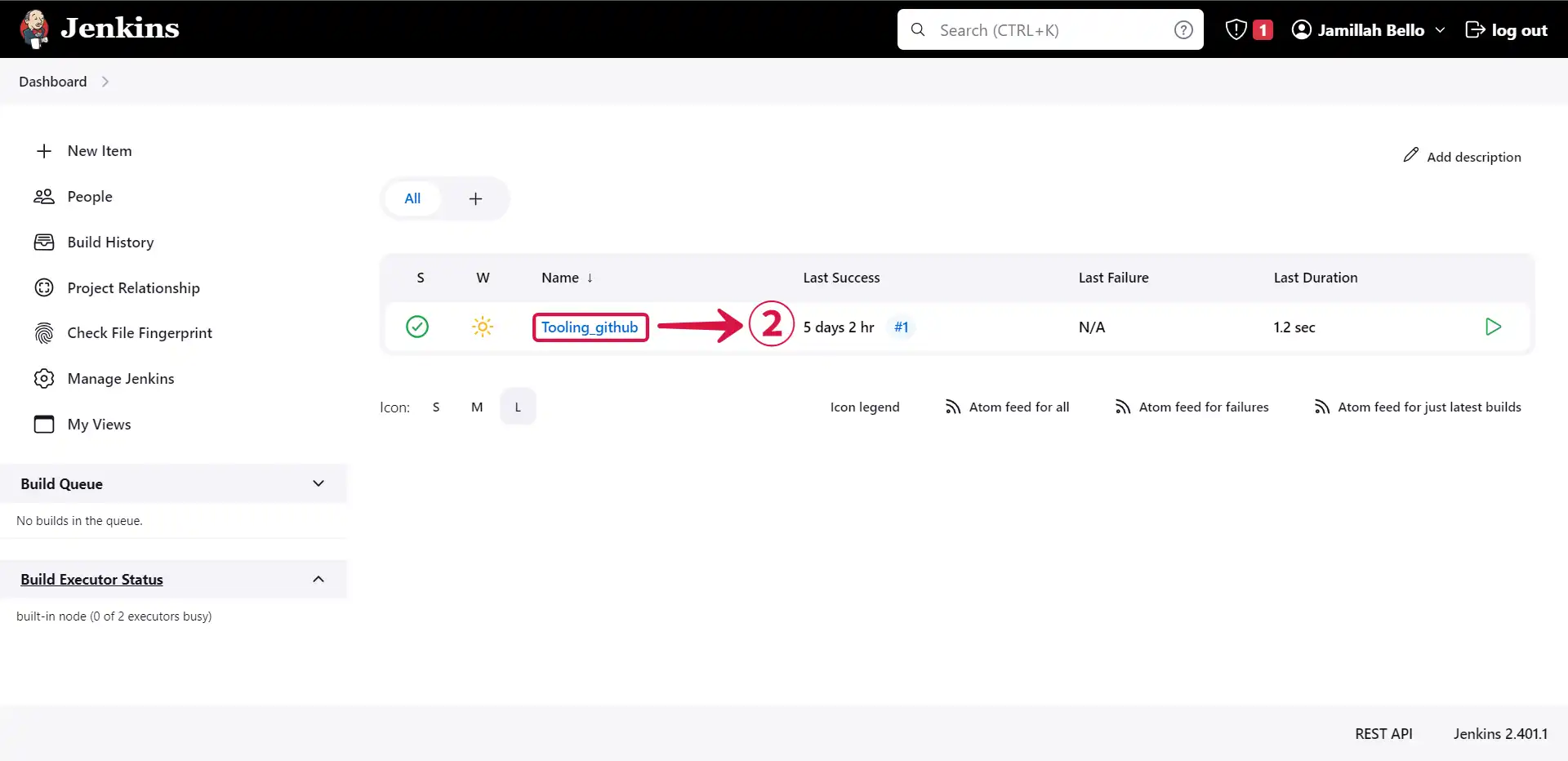
- Access your project⑧ by clicking on it.
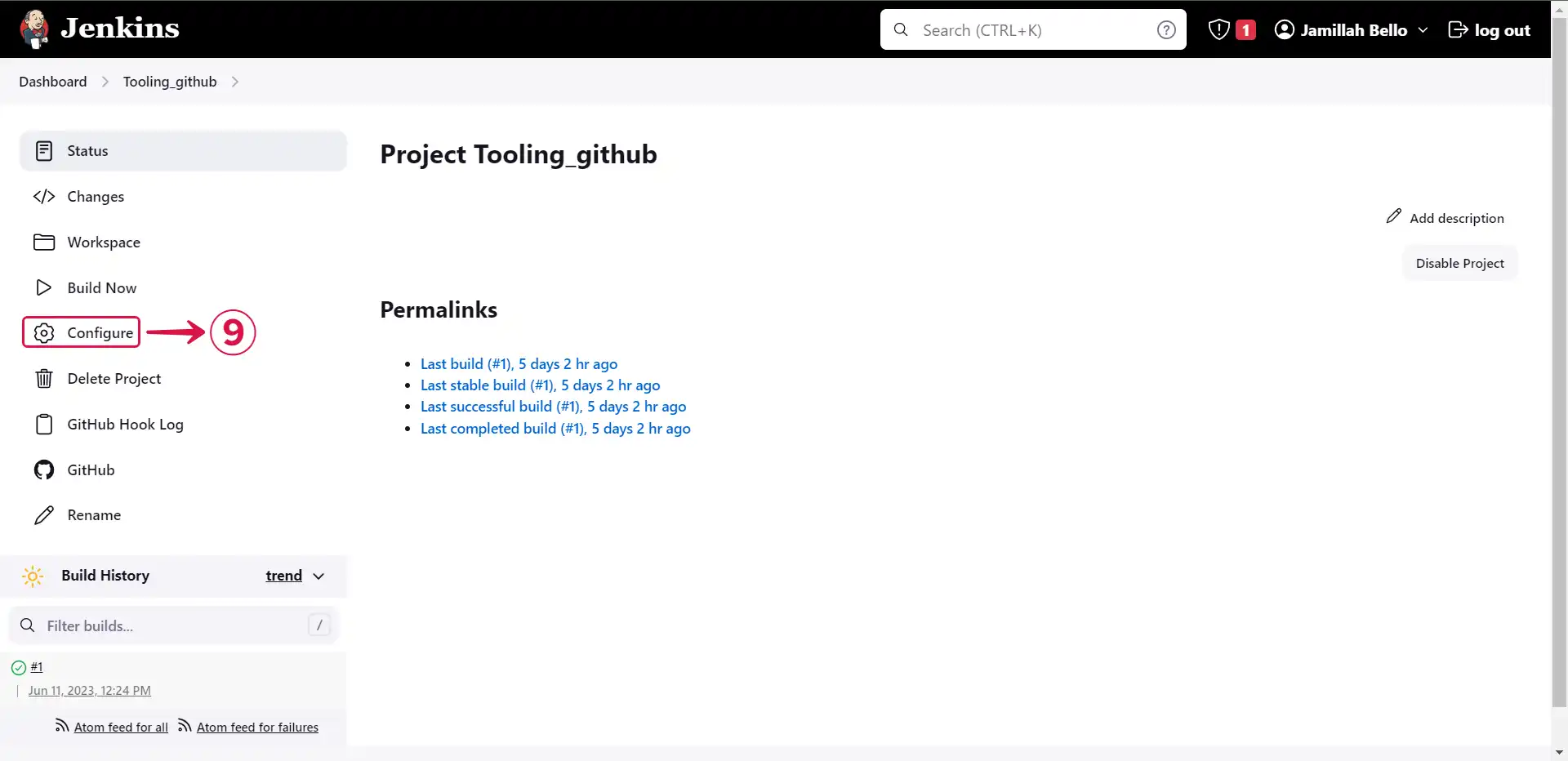
- Click on Configure⑨.
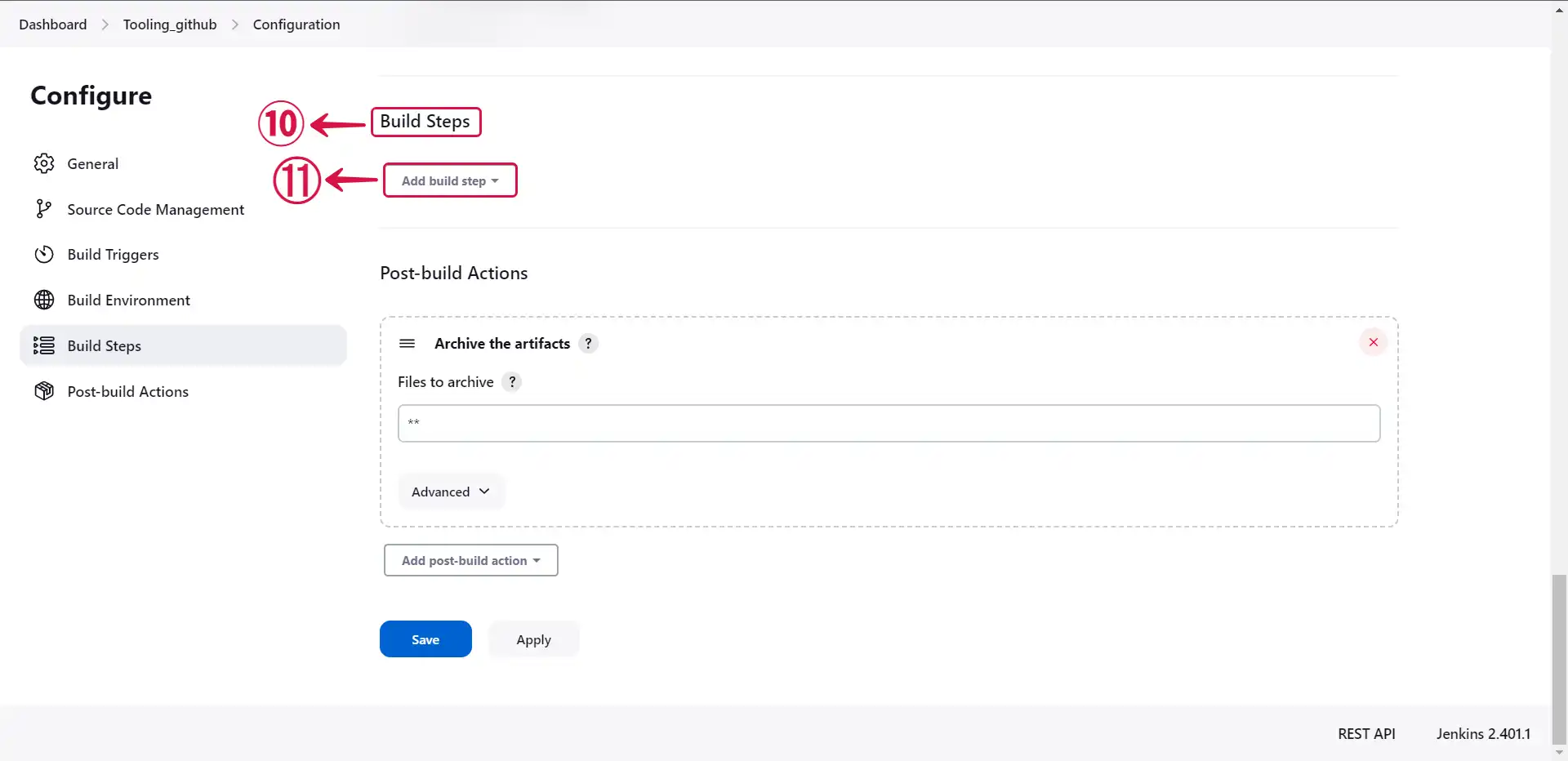
- Scroll down to Build Steps⑩ and click on Add build step⑪.
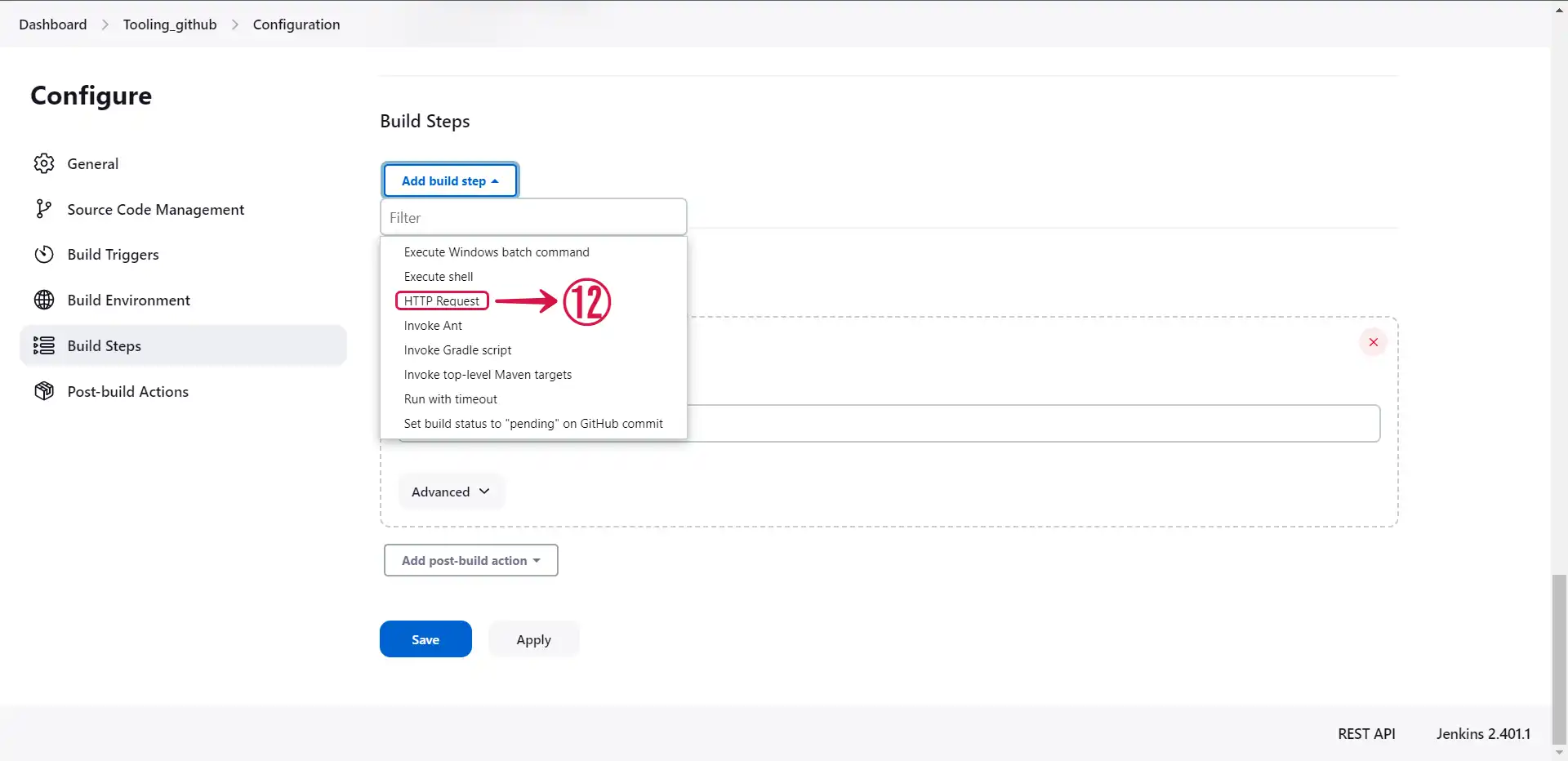
- Select HTTP Request⑫.
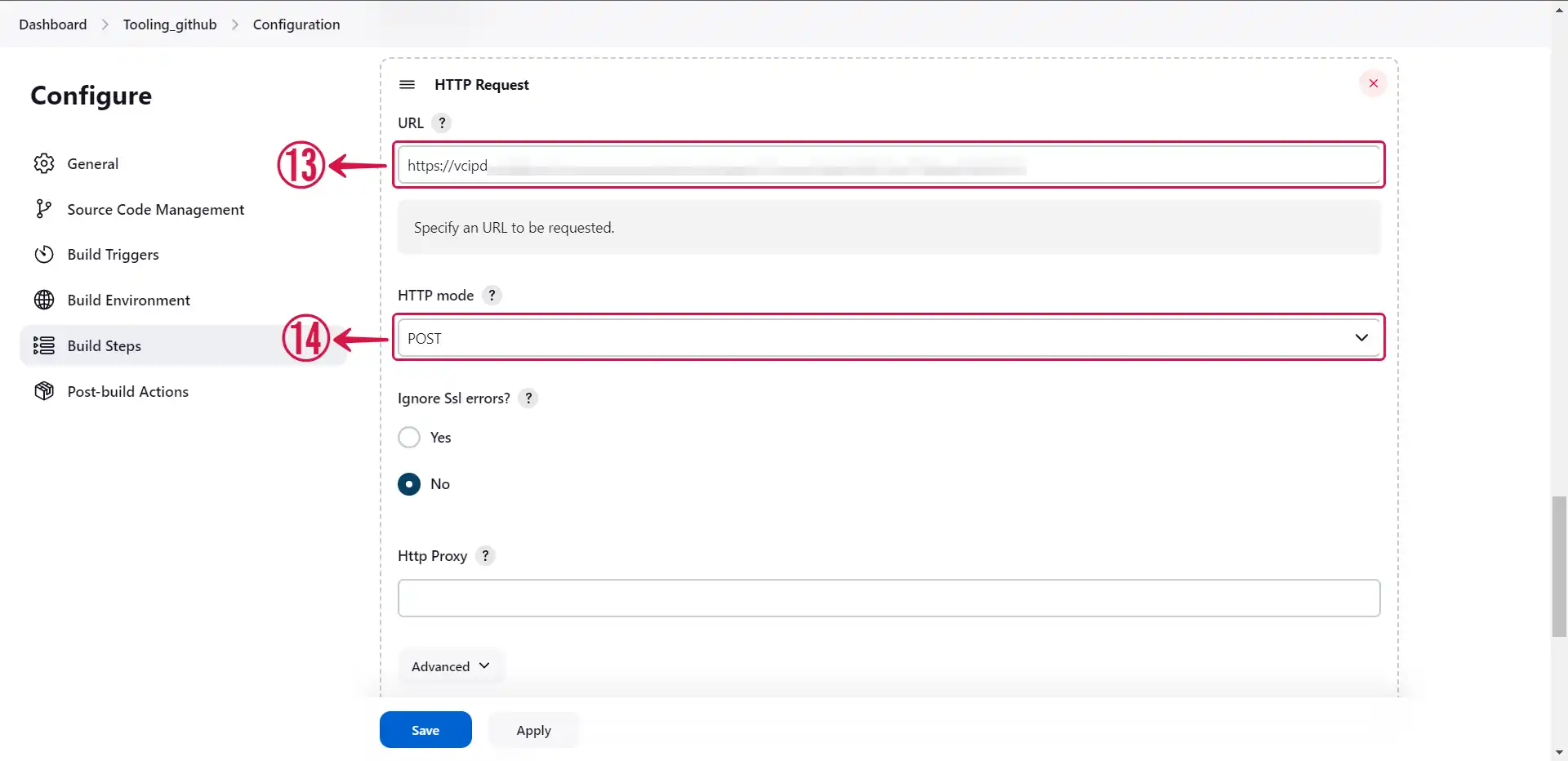
- Provide the payload URL⑬ copied from your Jenkins source connector in Vanus Connect and choose POST⑭ as the HTTP mode.
- Click on Advanced⑮ to see more settings.
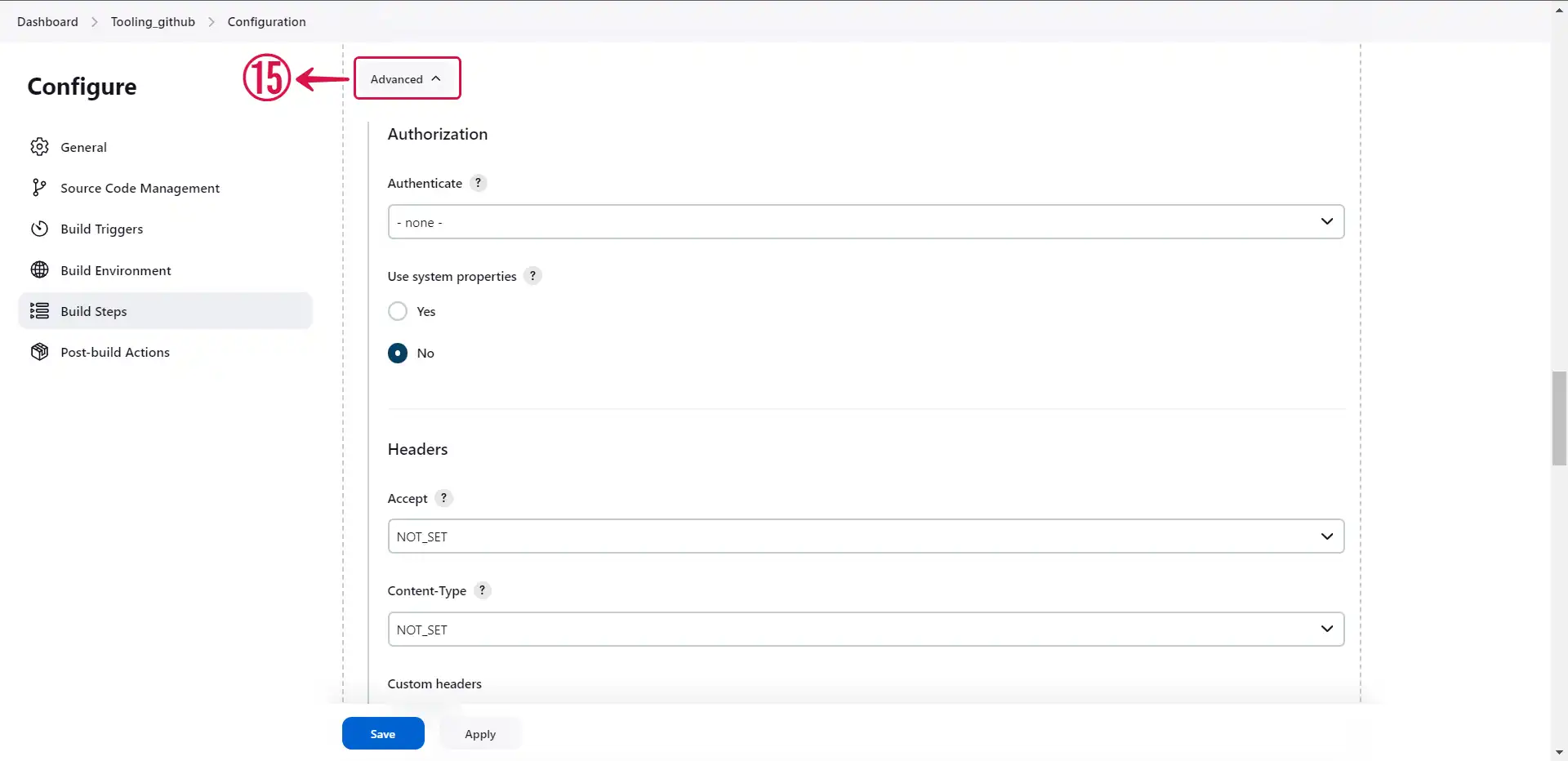
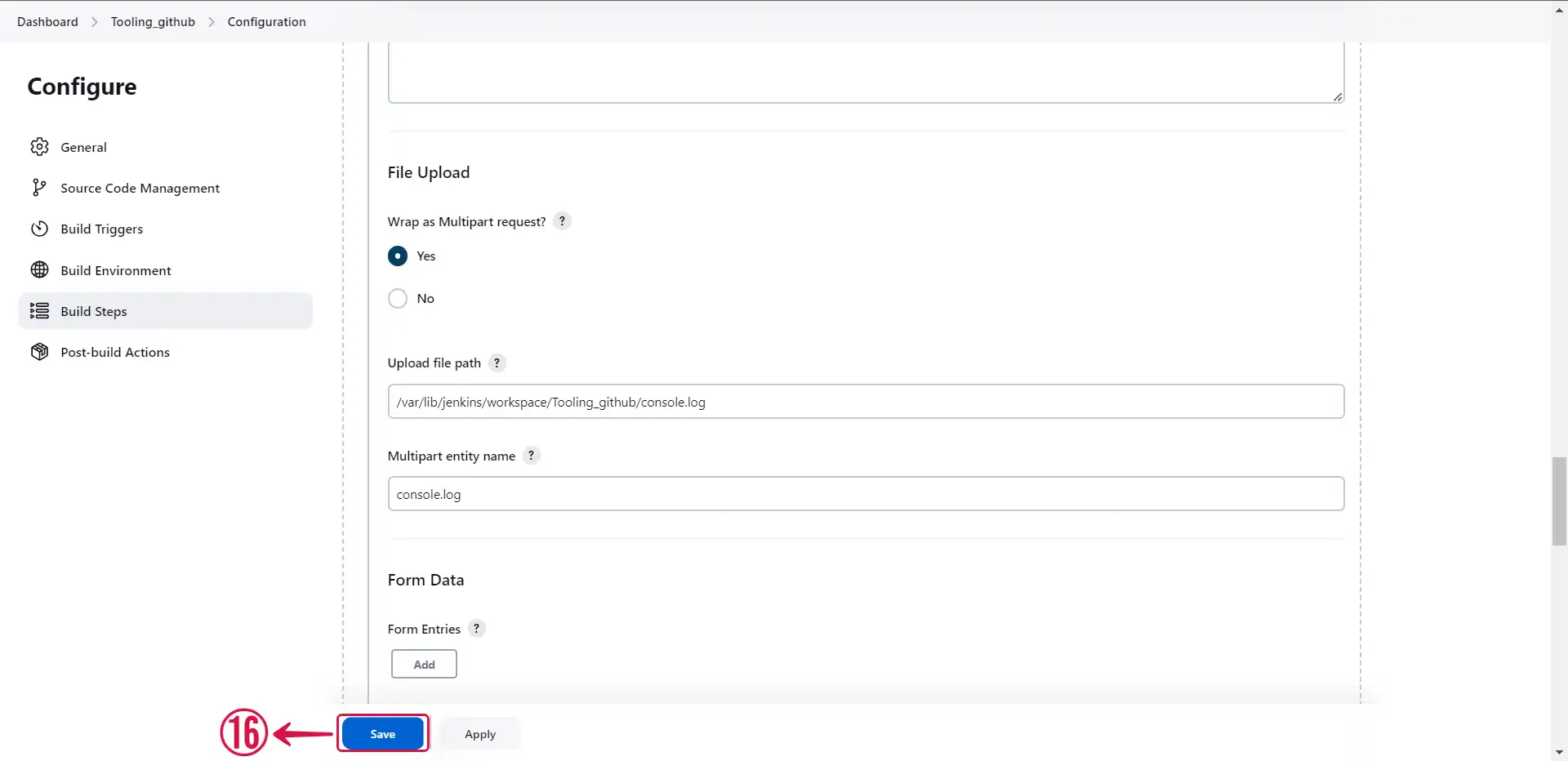
- Set your desired parameters and click on Save⑯.
- Click on Manage Jenkins①.
- Click into your project②.
- Scroll down to Build Steps③ and click on Add build step④.
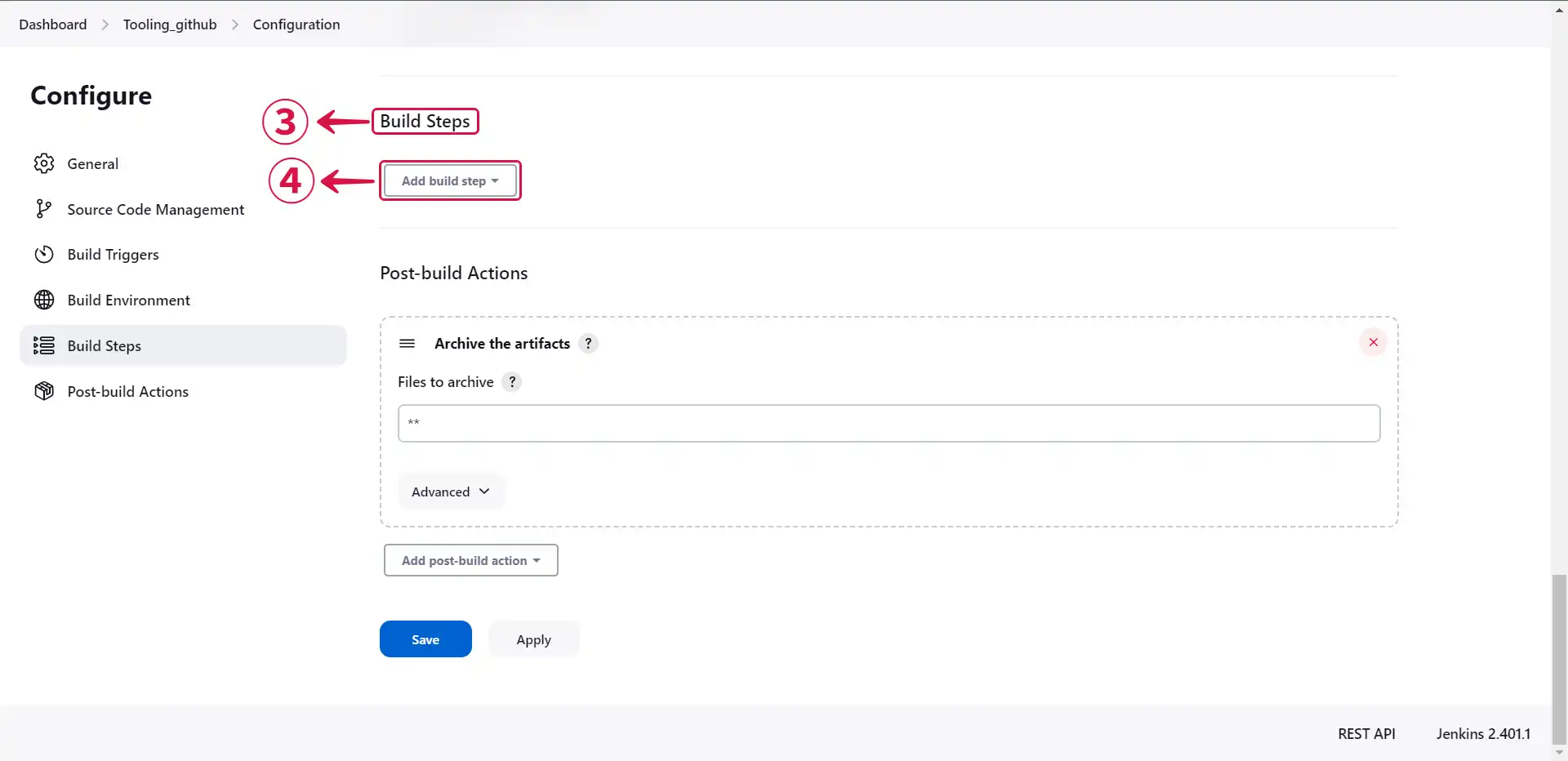
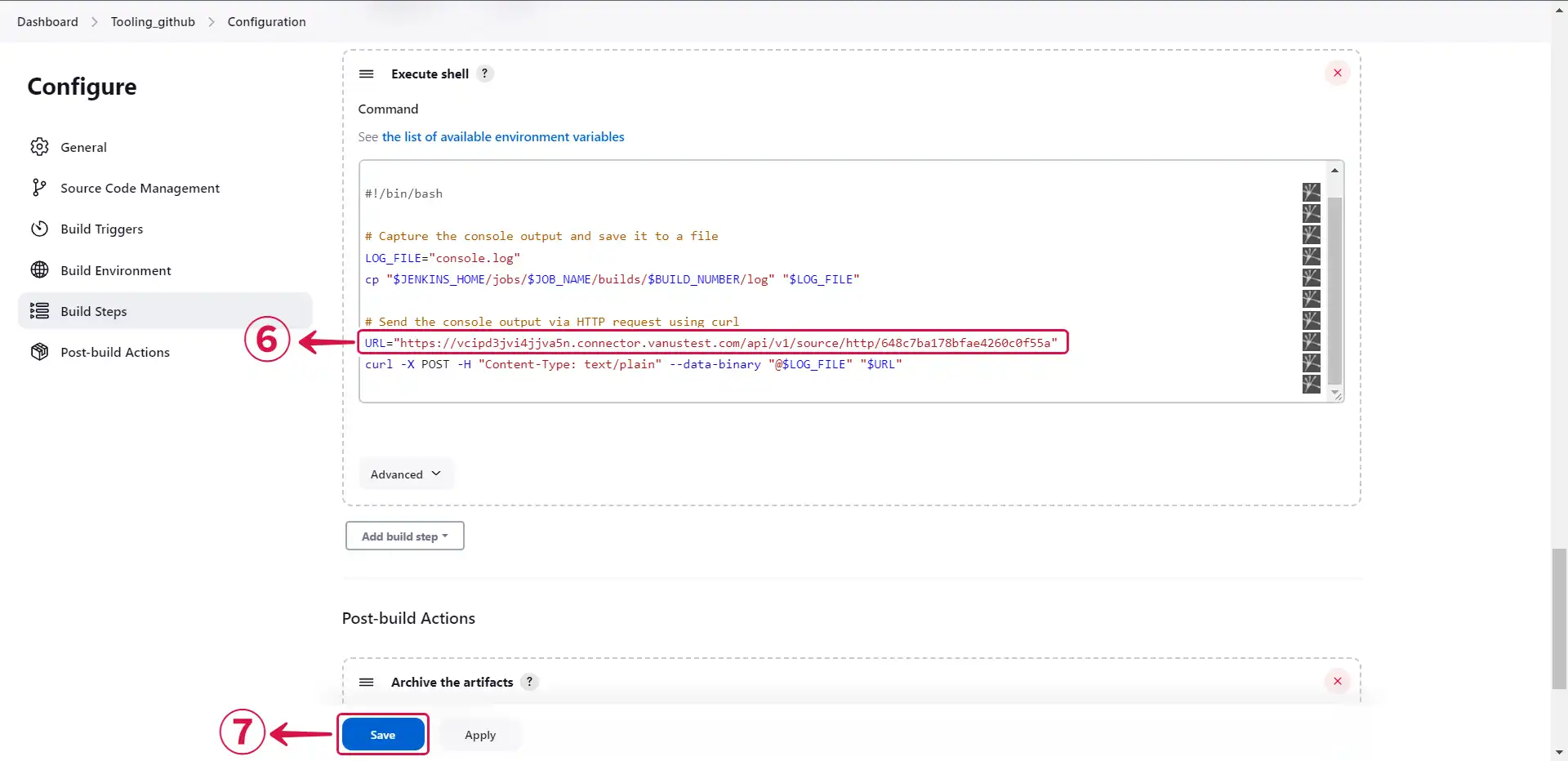
- Click on Execute shell⑤.

- Compose your code in the command field, including the Jenkins source connector's copied payload URL⑥, and click on save⑦.
备注
If you are employing a custom script to transmit events, there is no requirement to install the HTTP Request plugin.