webhook
Configuring SAP BTP to Send Webhook Events
Step 1: Configure webhook
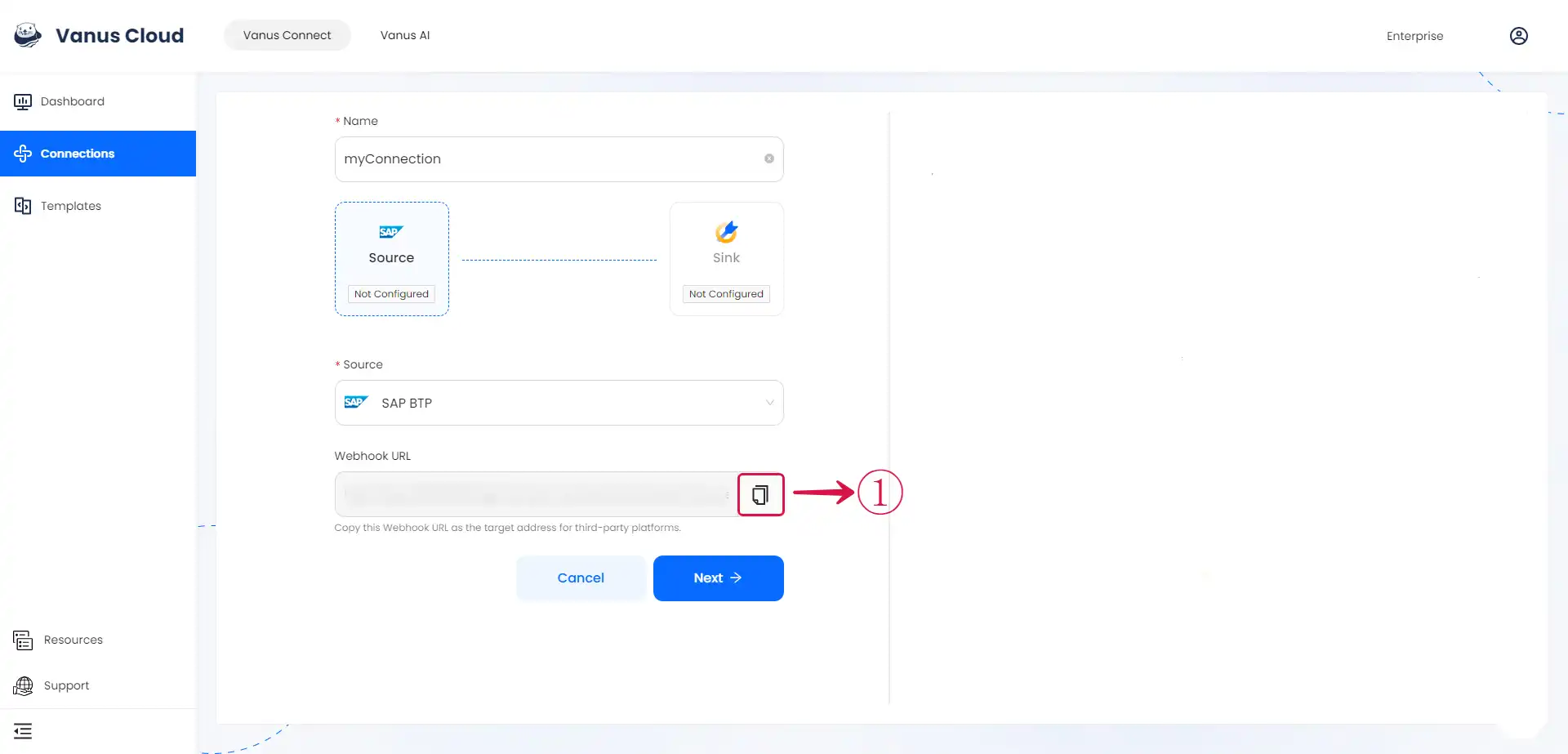
- Click the copy① icon to copy the webhook url.
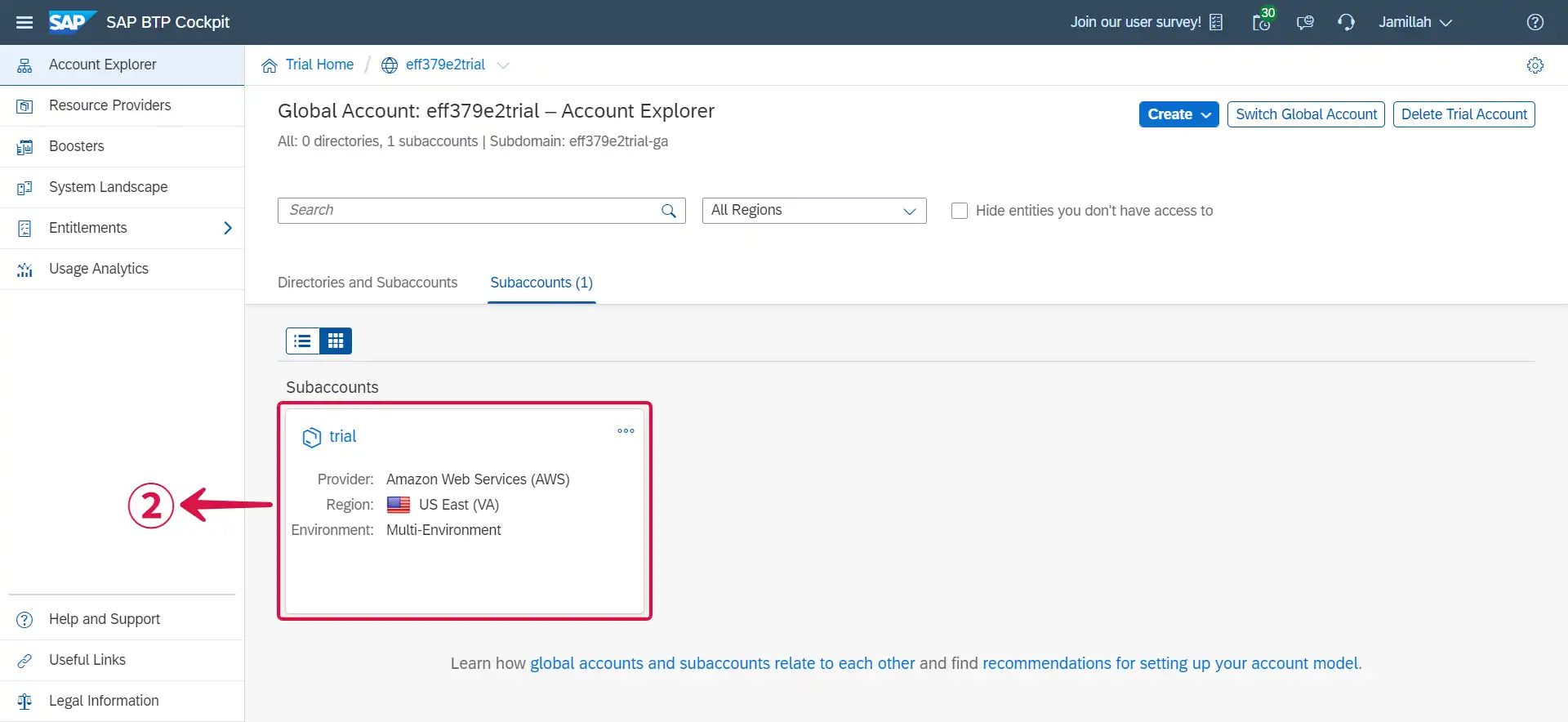
Log in to your SAP BTP account.
Navigate to the Subaccounts② page by clicking on it.
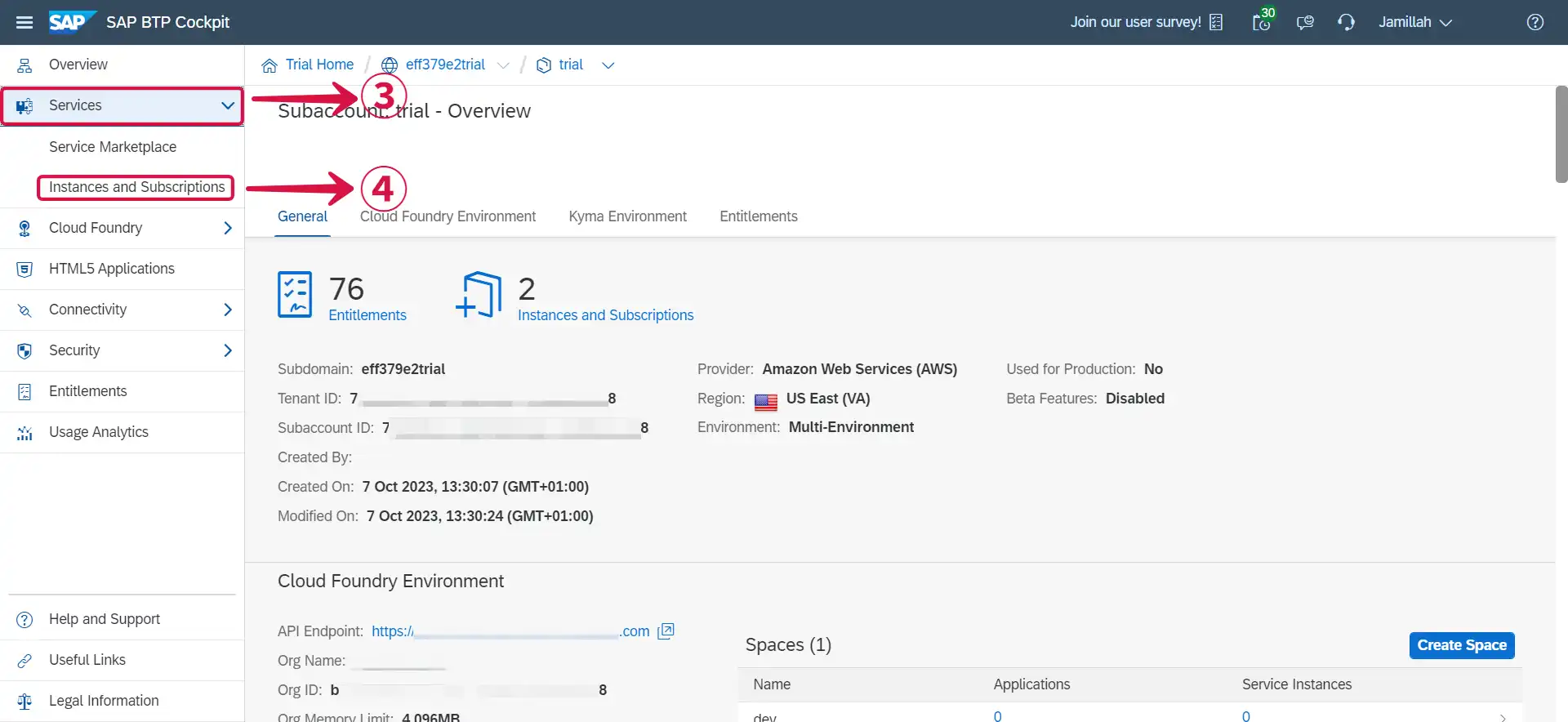
- Click on Services③ and select Instances and Subscriptions④.
- Click on the Create⑤ button at the top right.
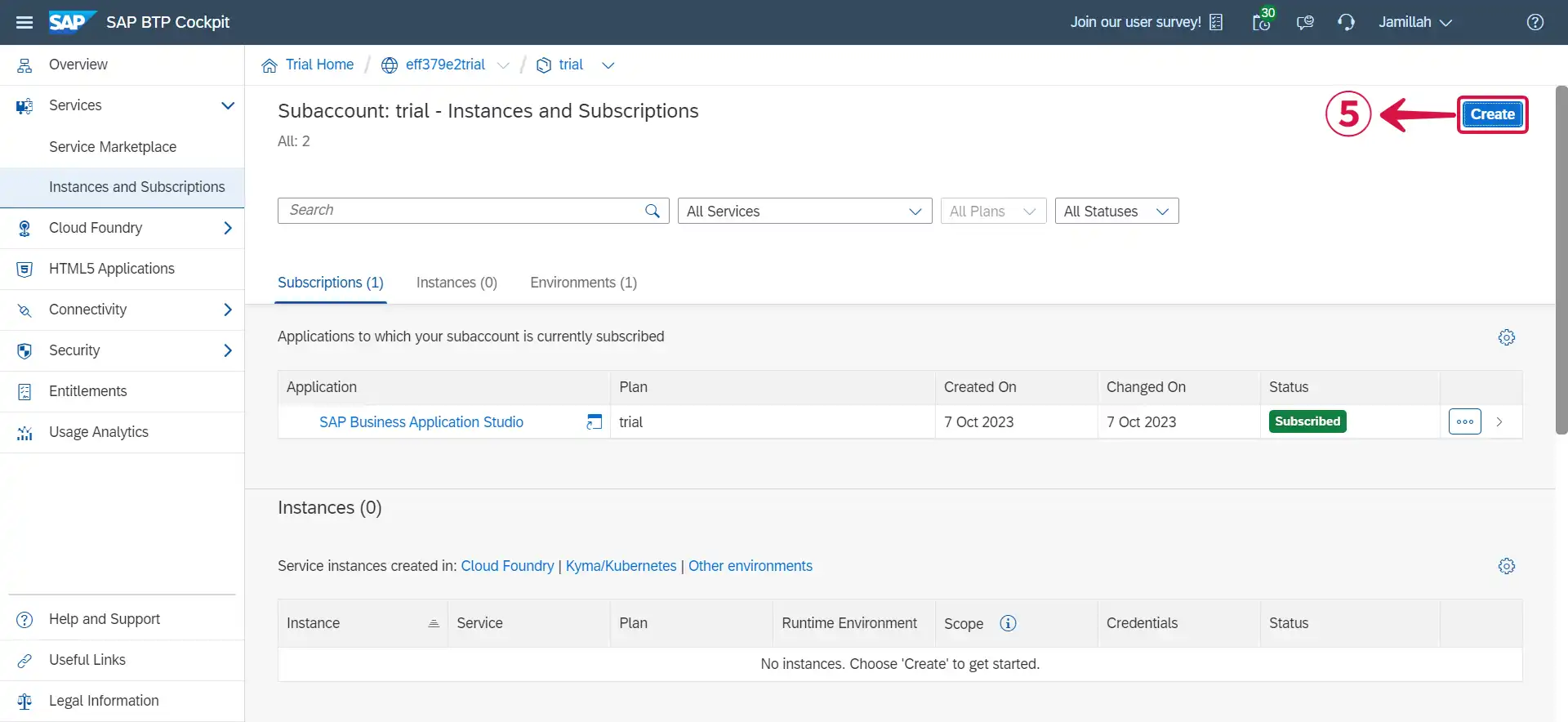
- Click on Select Service⑥ to reveal the dropdown menu.
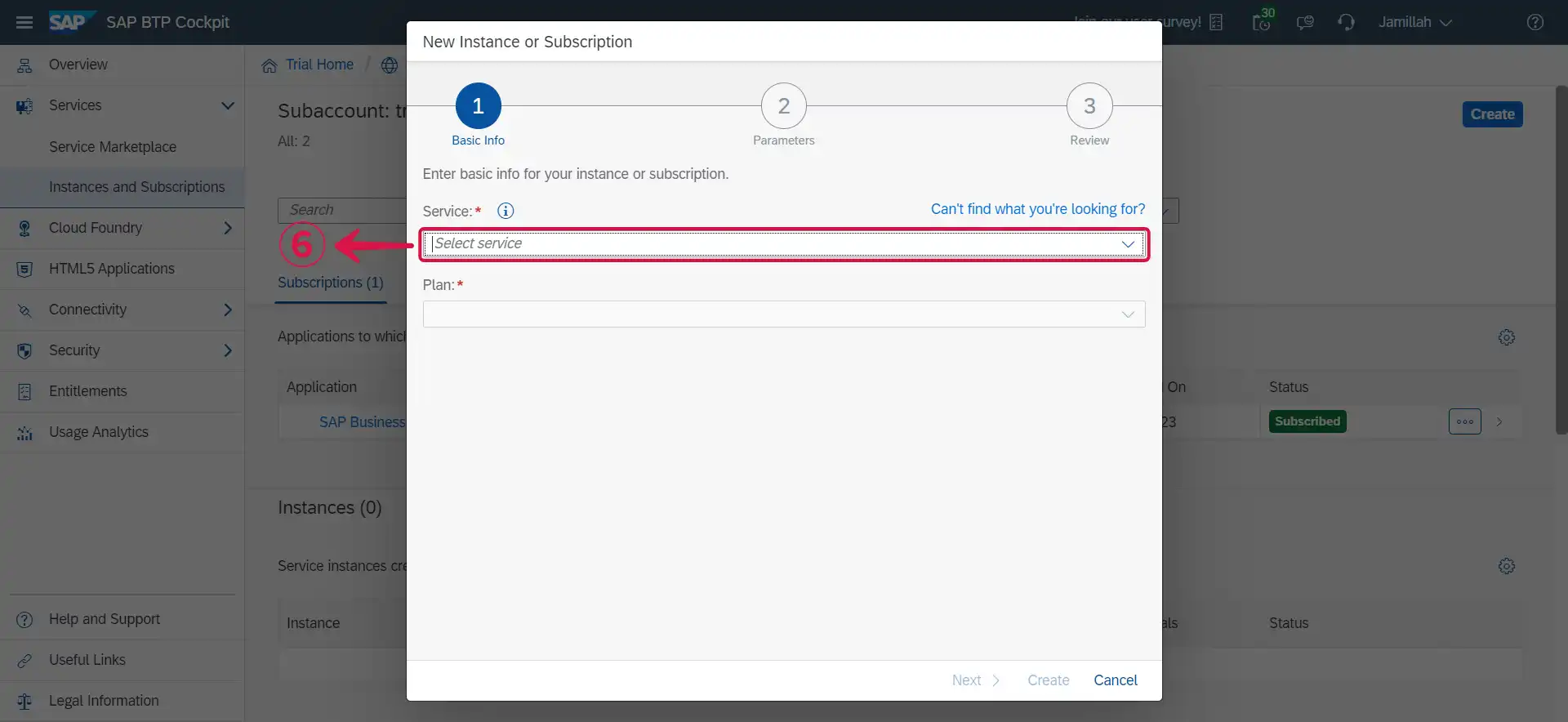
- Select Alert Notification⑦, choose an Instance Name⑧ of your choice and click on Next⑨.
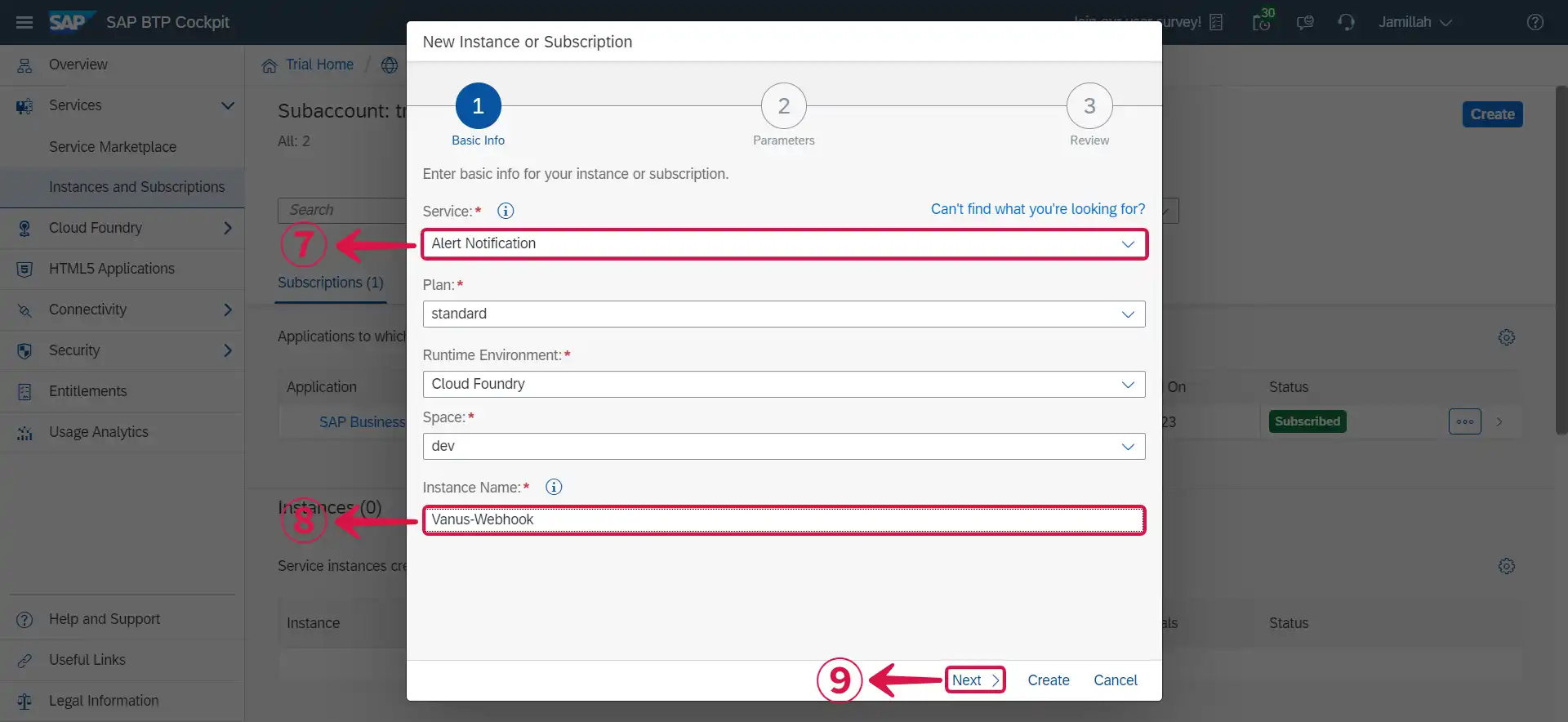
- Leave the Instance parameters as default and click Next⑩.
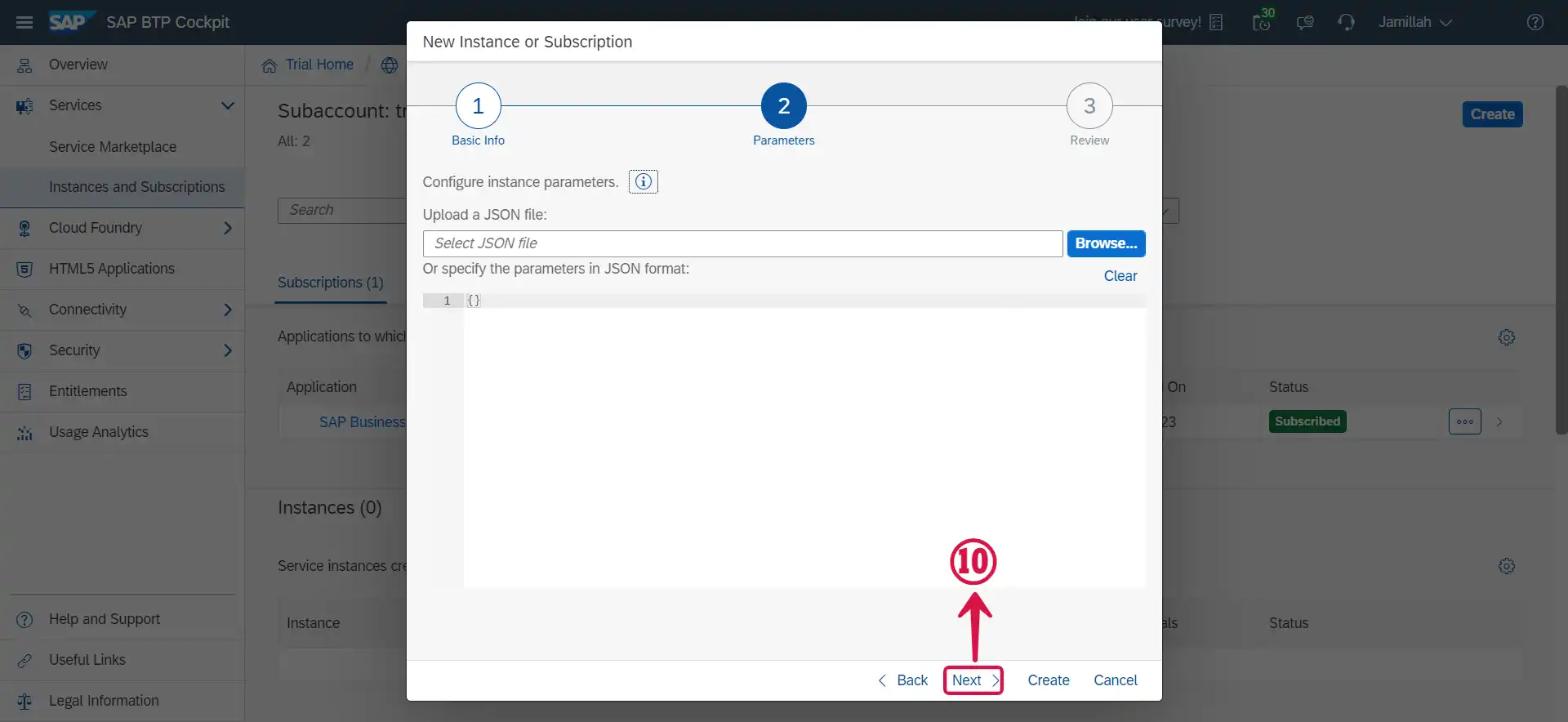
- Click Create⑪.
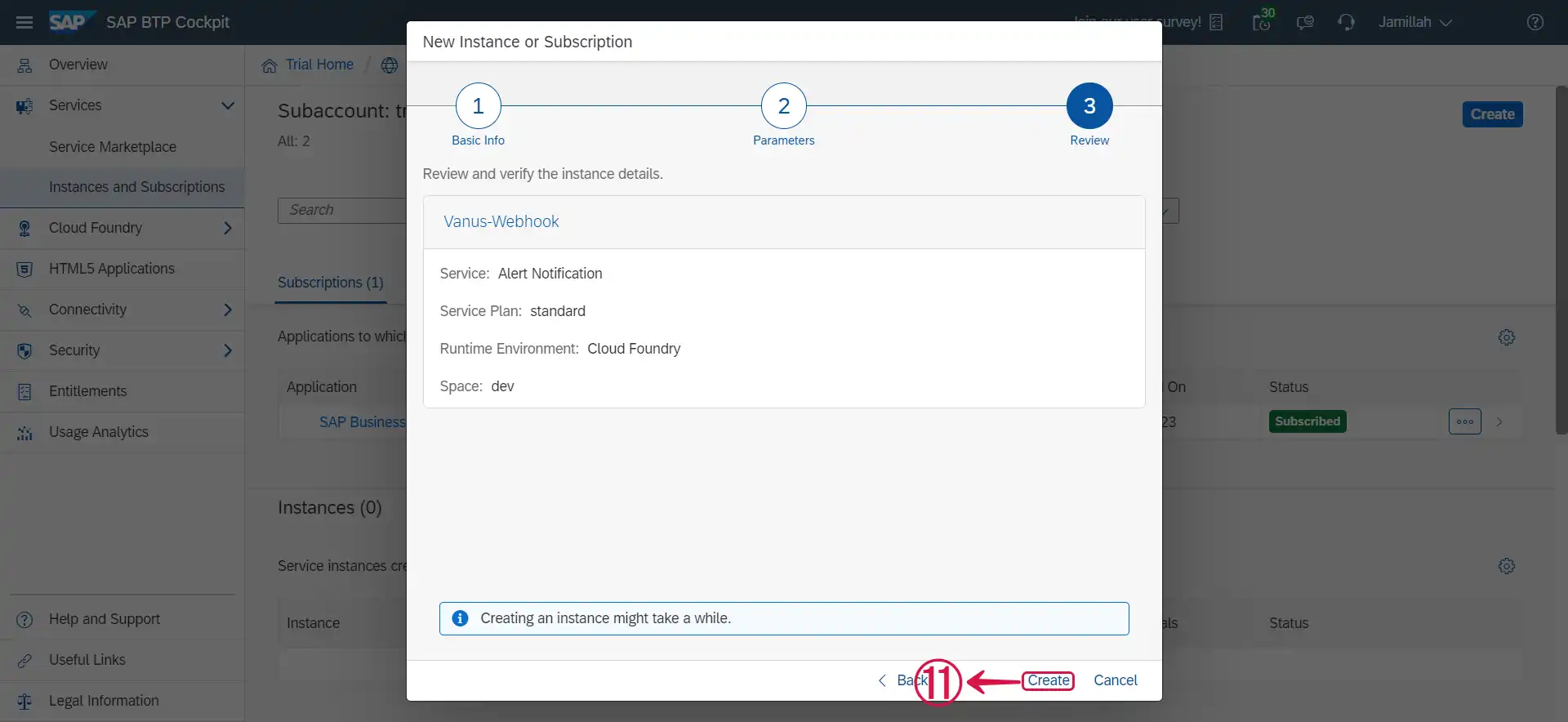
- Click on the name of the Instance⑫ that was just created.
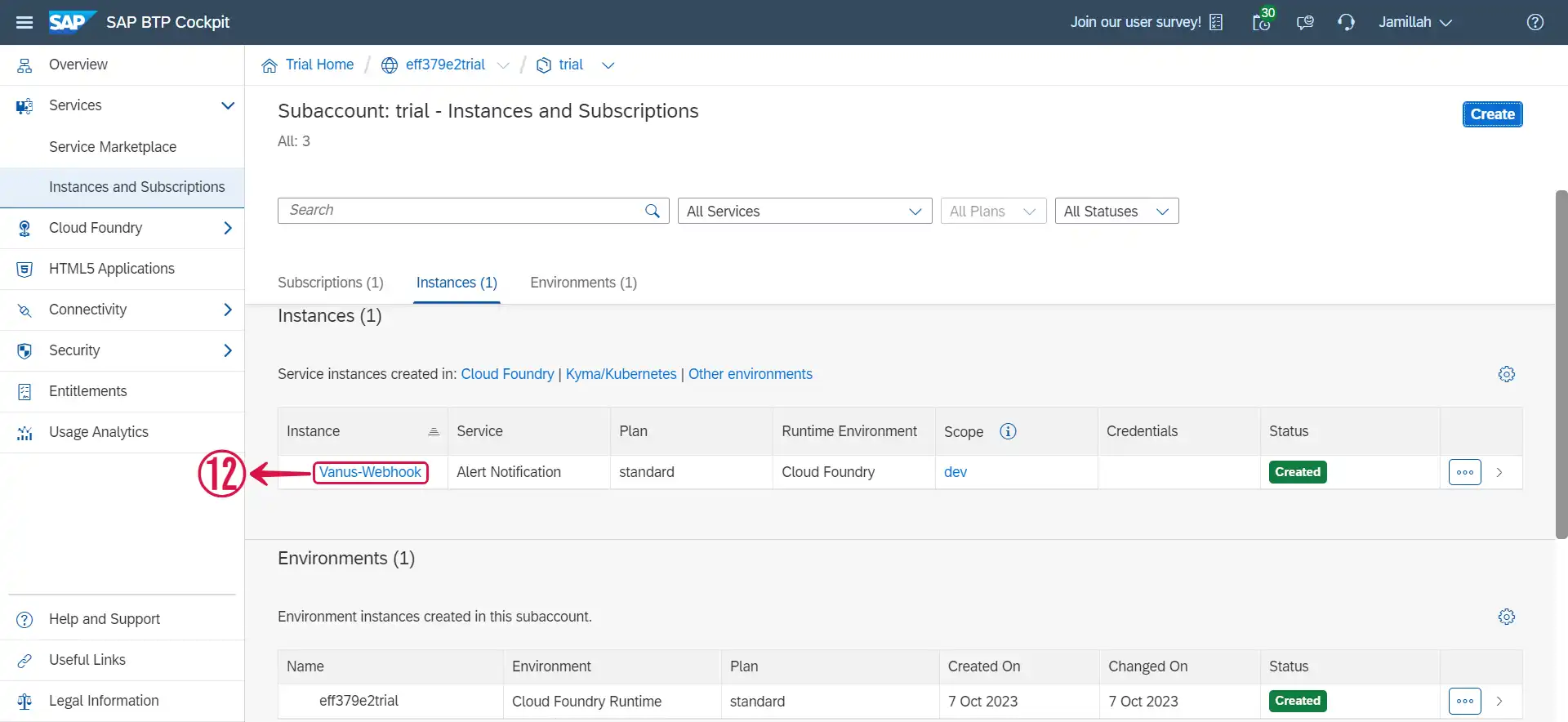
- Click on Actions⑬.
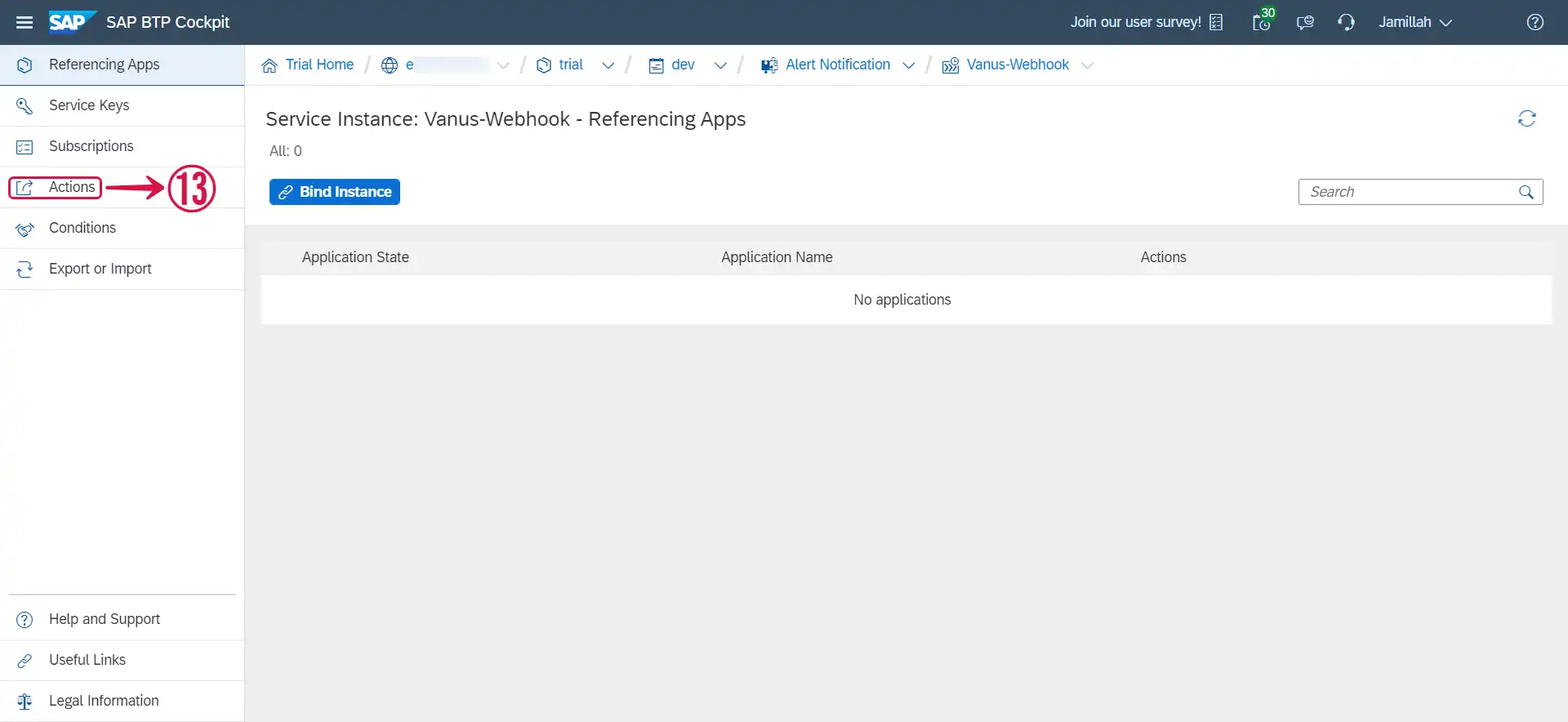
- Click on Create⑭.
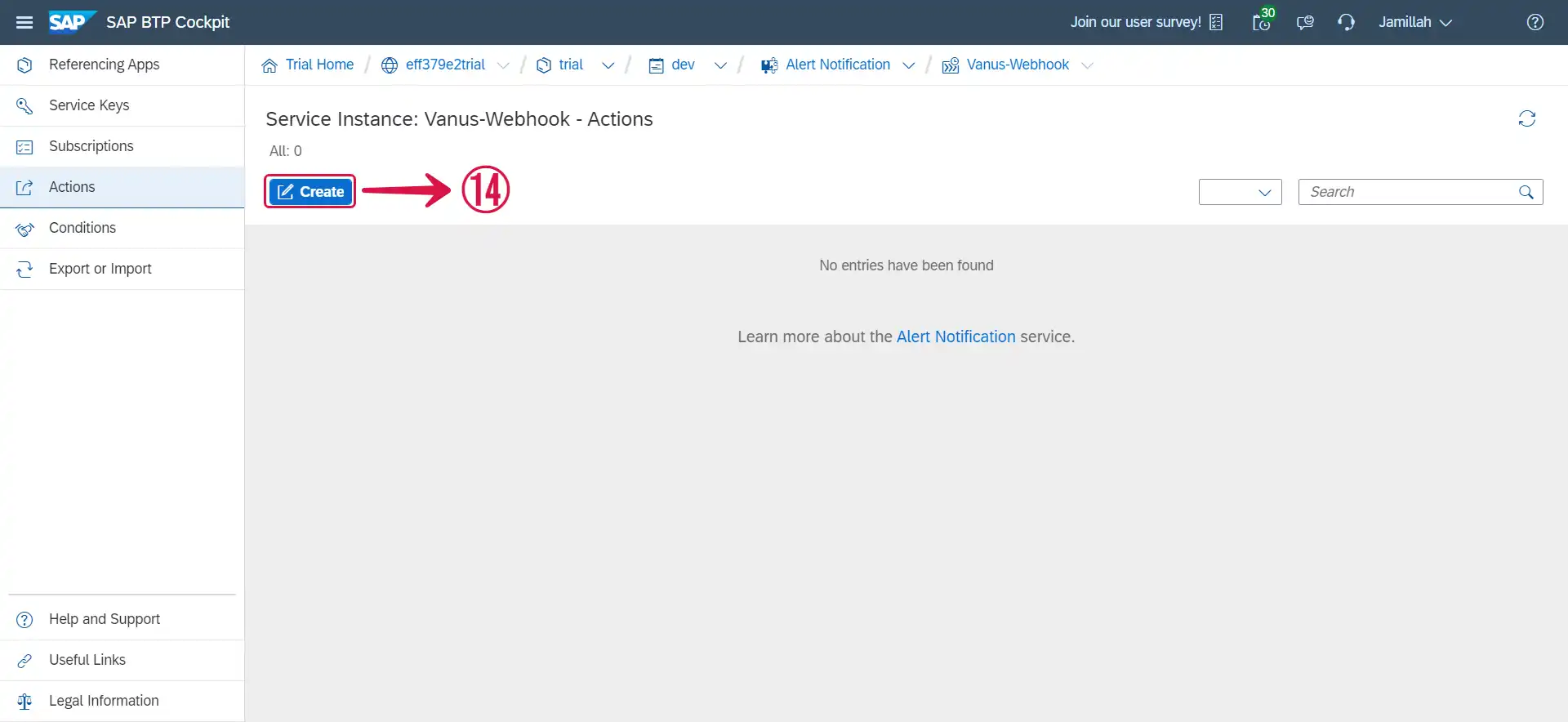
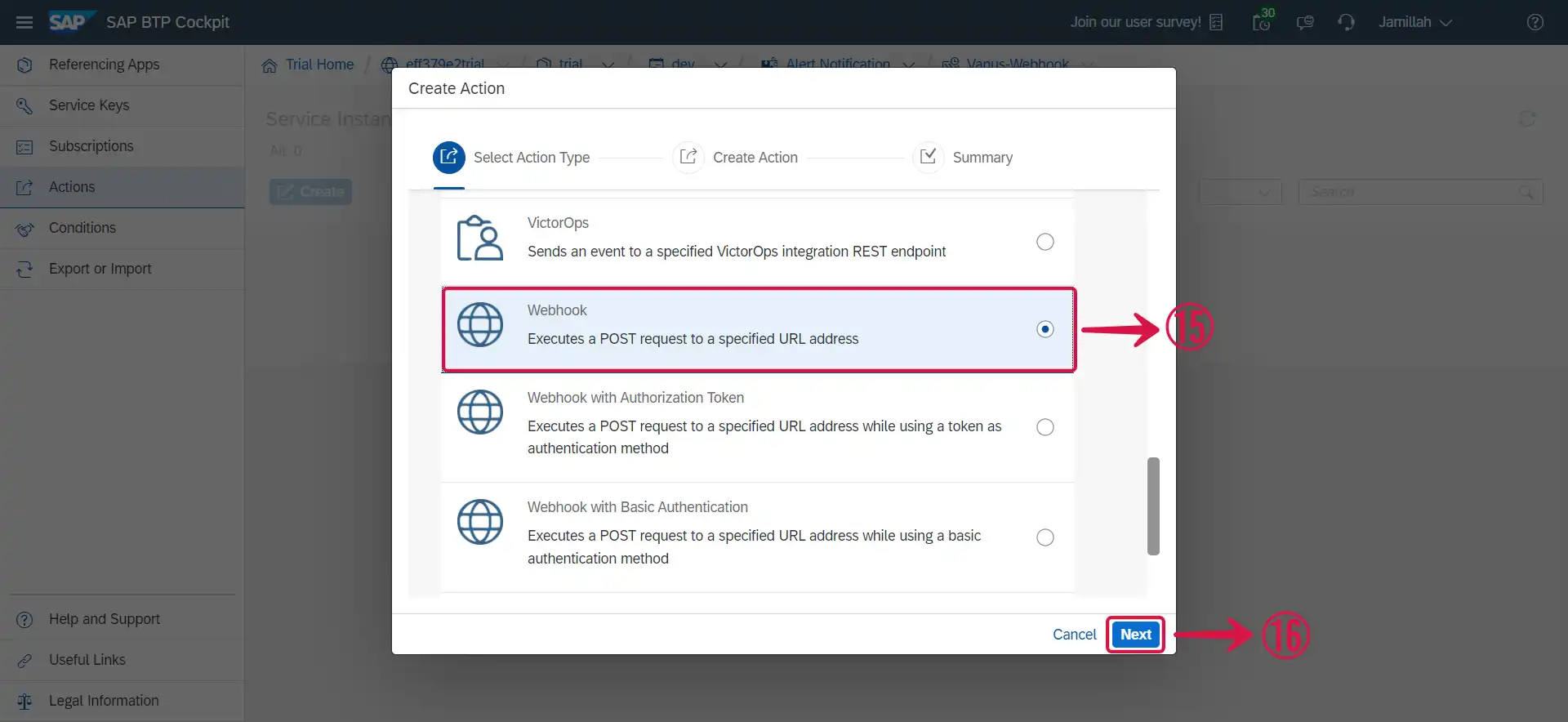
- Scroll down and select Webhook⑮ as the action type and click on Next⑯.
备注
Do not select the Webhook with Authorization Token or Webhook with Basic Authentication as they would need extra level of authentication.
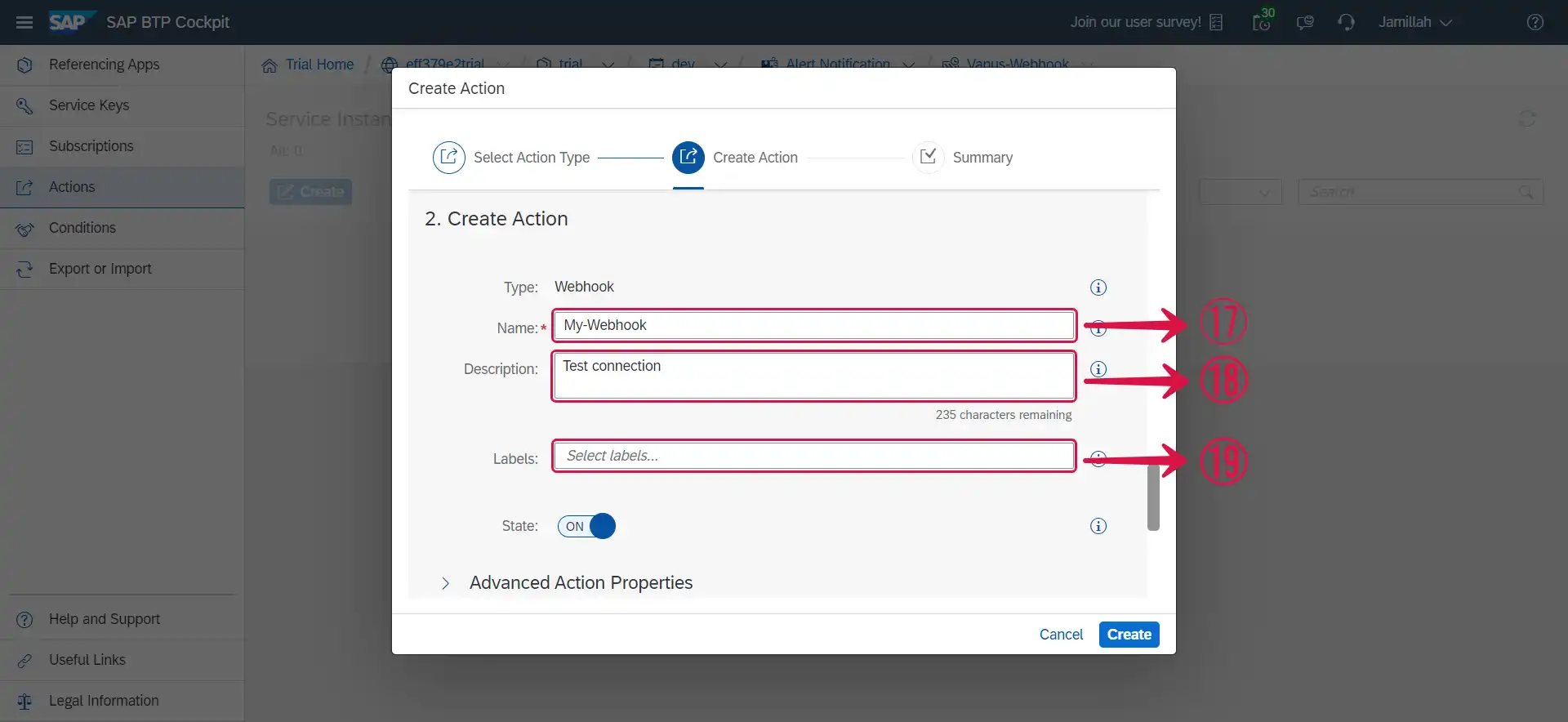
- Insert a desired Name⑰ for your webhook and Description⑱ or Labels⑲ if any.
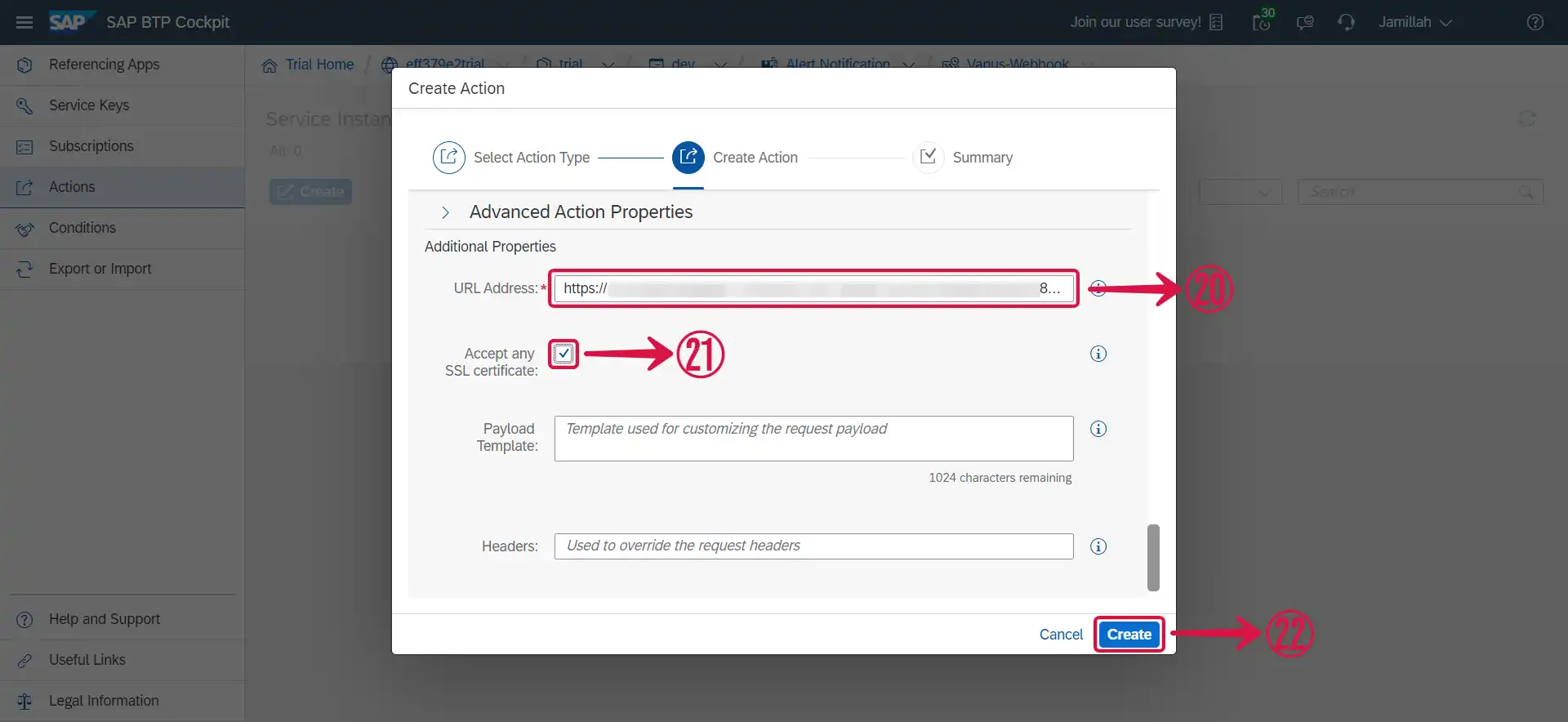
- Scroll down, paste the webhook URL you copied earlier in the URL Address⑳ section, tick the Accept any SSL certificate㉑ checkbox and click Create㉒.
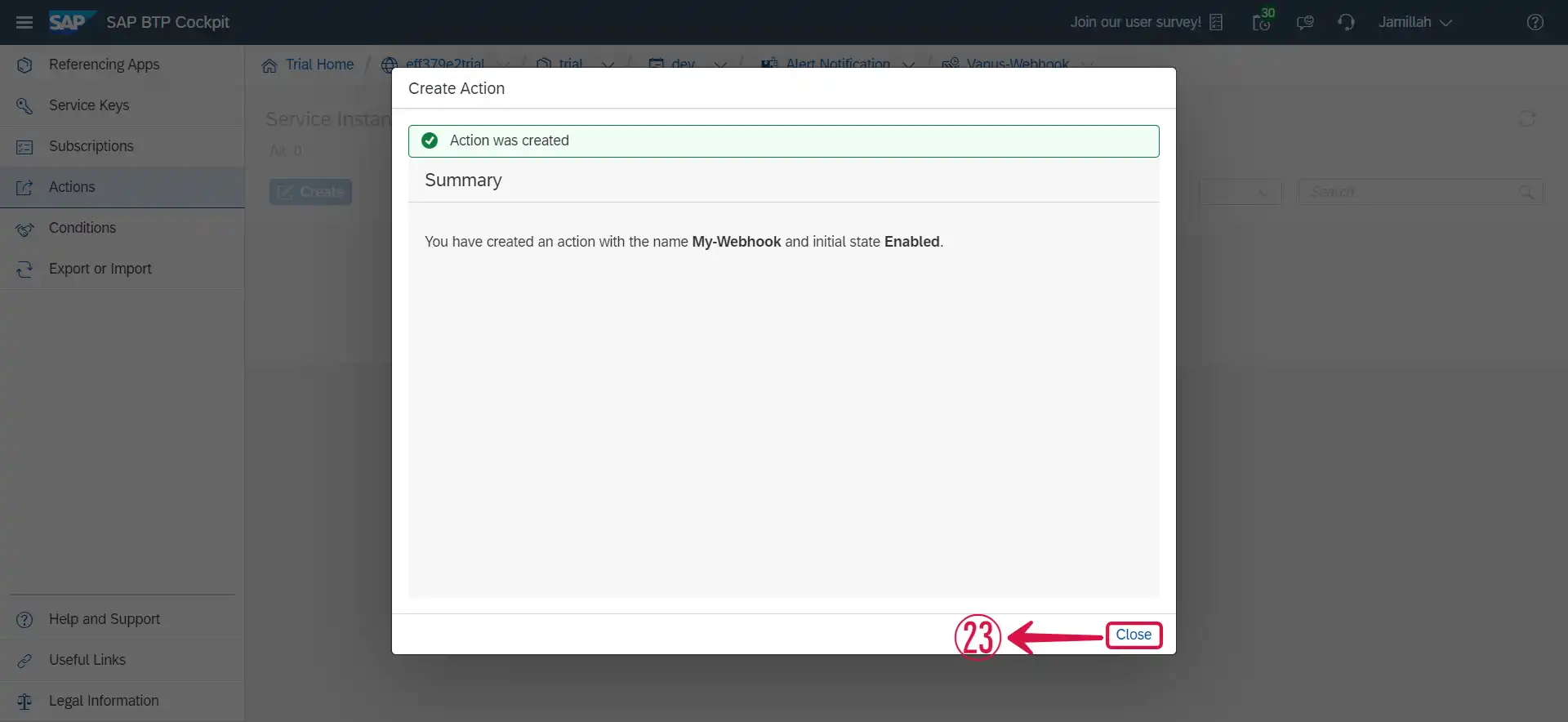
- Click on Close㉓.
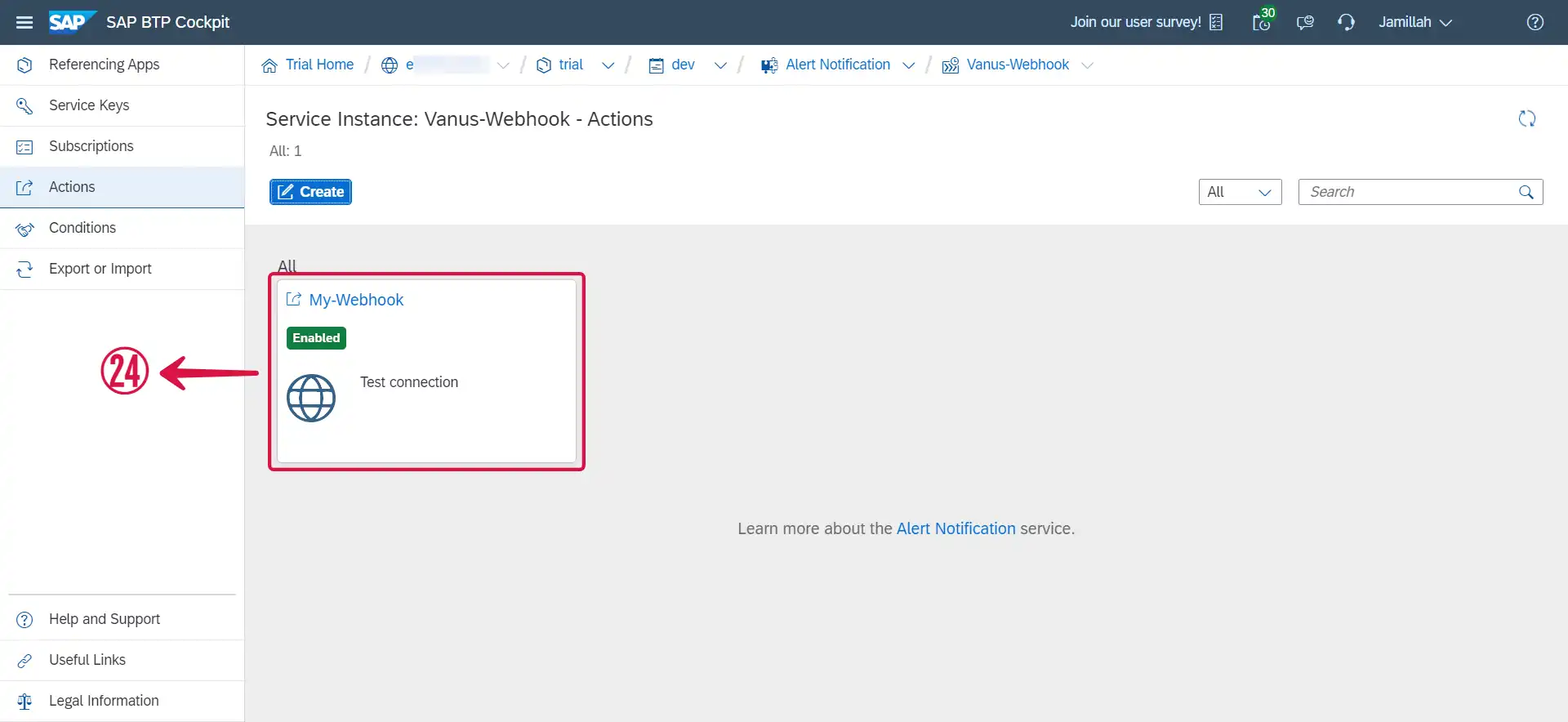
- A successful webhook integration would look like this㉔.