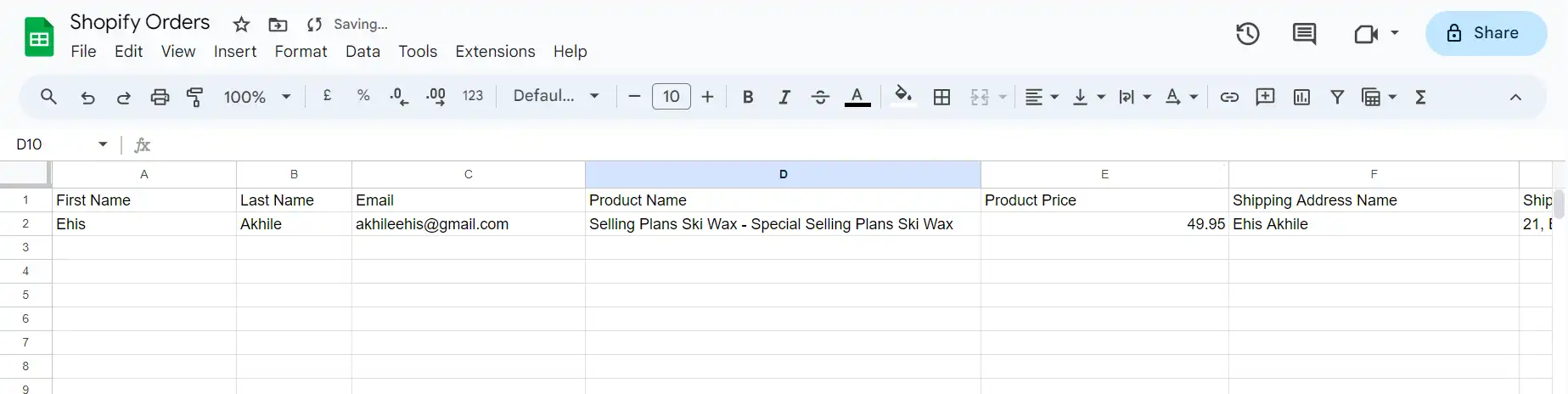
Shopify orders paid event create new row in Google Sheets
Shopify is a popular e-commerce platform that enables individuals and businesses to create and manage online stores.
By employing Vanus Connect, you can automatically add paid orders to your Google Sheets spreadsheet as a new row.
This guide is designed to assist you in setting up a system where you add paid orders to your Google Sheets spreadsheet as a new row.
Getting Started
Step 1: Configure the Source
Log in to Vanus Connect
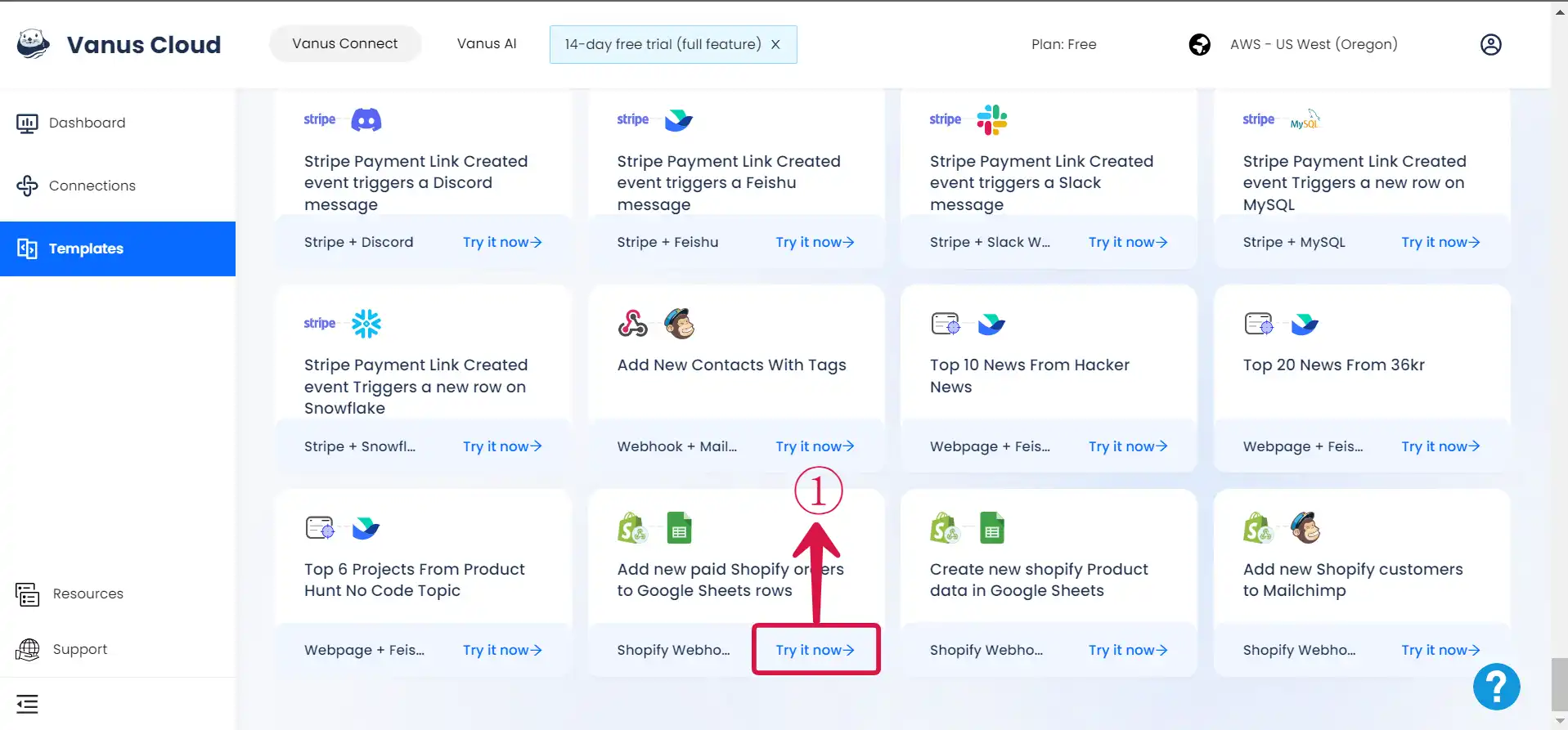
Choose the Add new paid Shopify orders to Google Sheets rows template. Click on Try it now①.
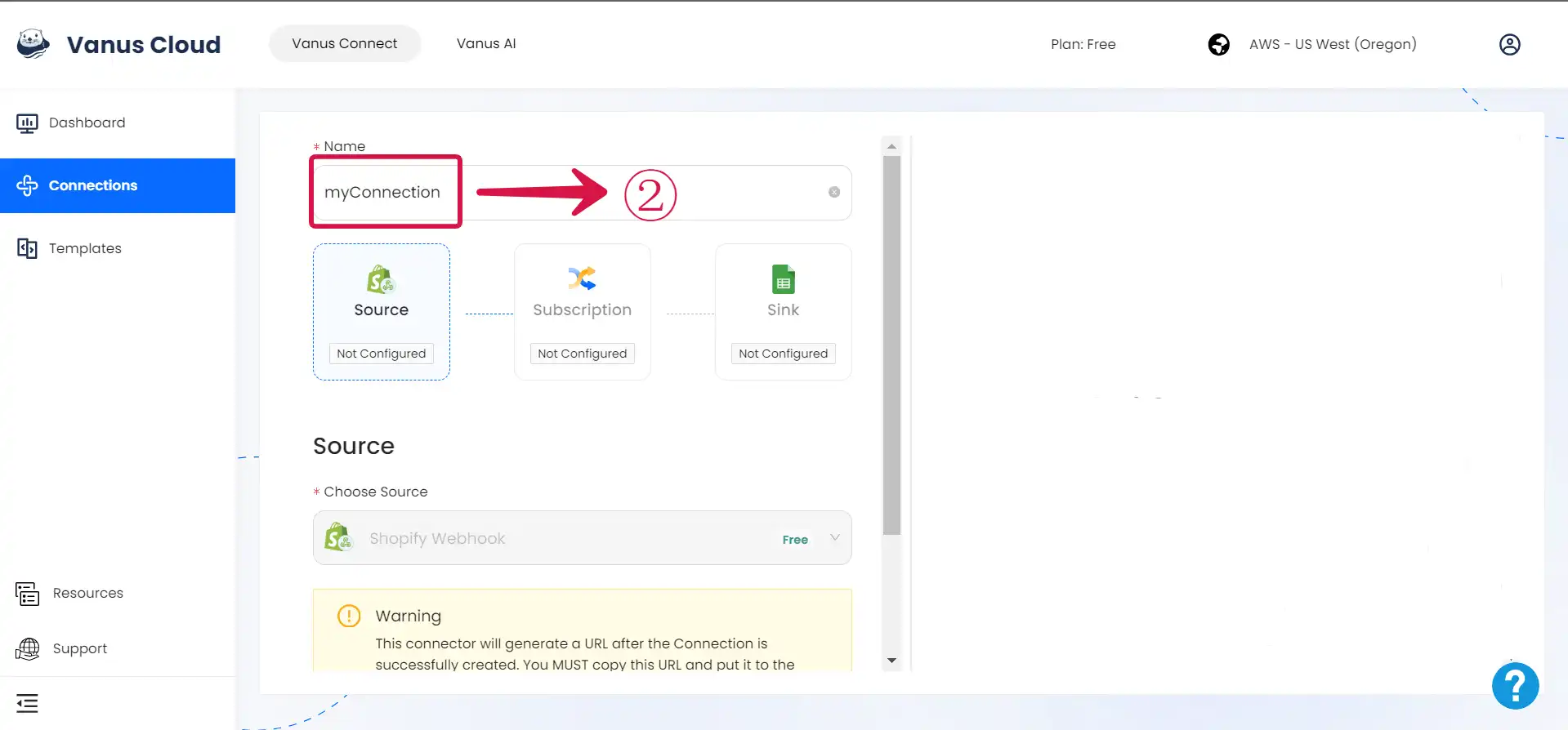
- Give the Conncection a Name②
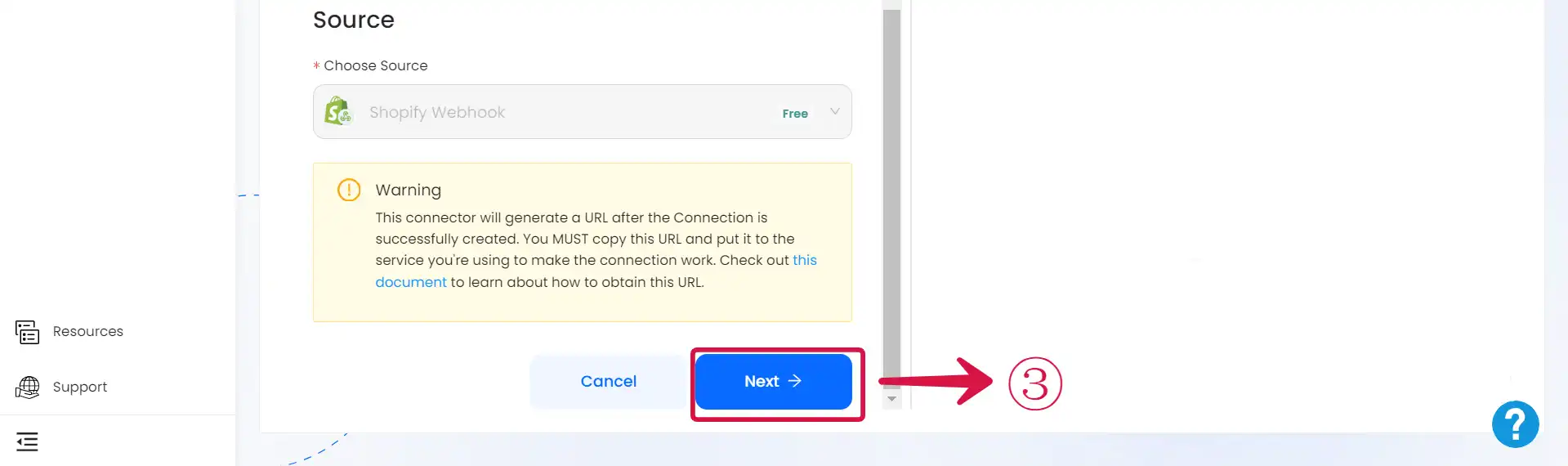
- Click Next③.
Step 2: Obtain Google Sheets Spreadsheet ID and Configure the Sink
Sign In to Google Sheets and create a new Sheet.
Copy① the Spreadsheet ID.

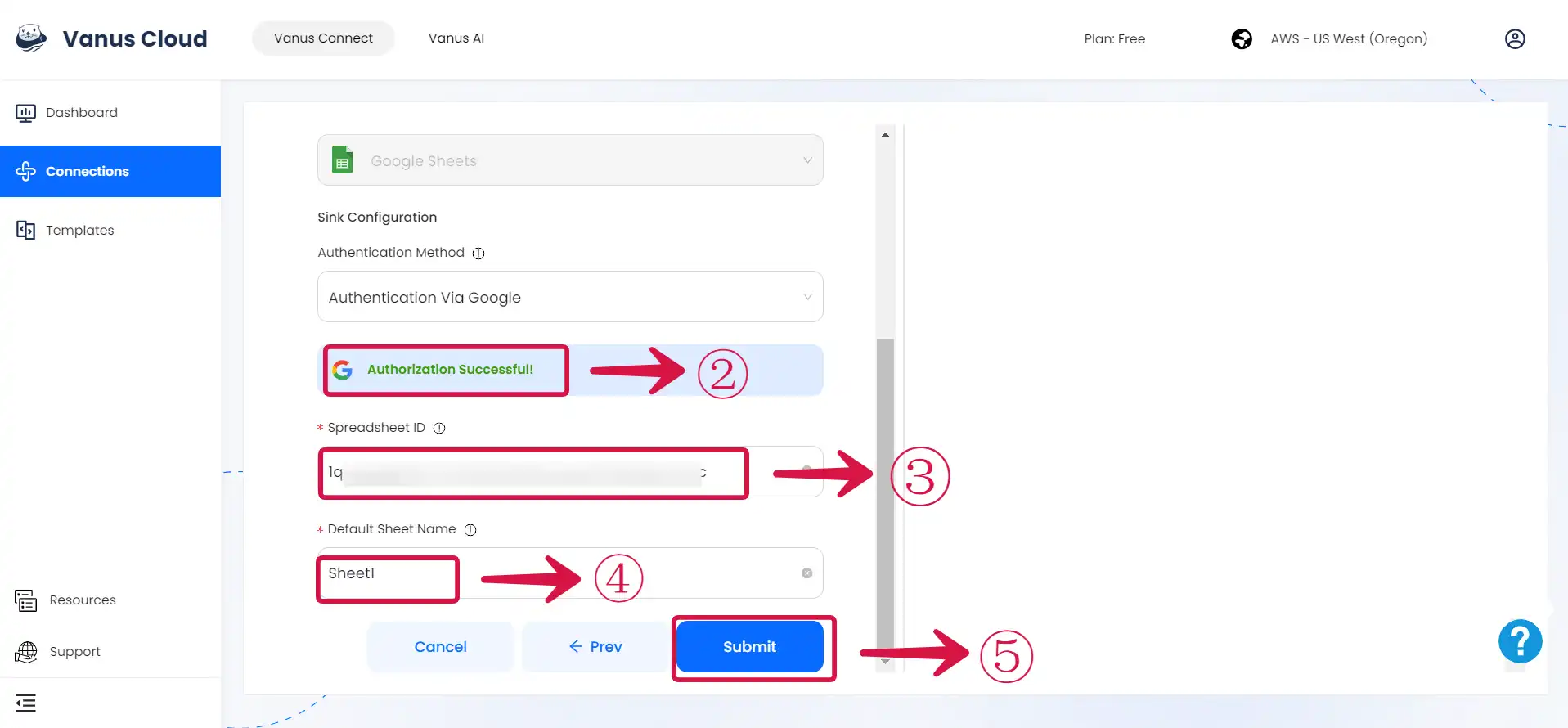
- For the Sink Configuration, Authenticate② with Google, Paste the Google Spreadsheet ID③, provide the Sheet Name④, and Click on the Submit⑤ button.
Step 3: Configure Vanus Connect to receive Shopify events
After creating the connection in Vanus Connect, we have to configure our connection to receives events from our Shopify Store.
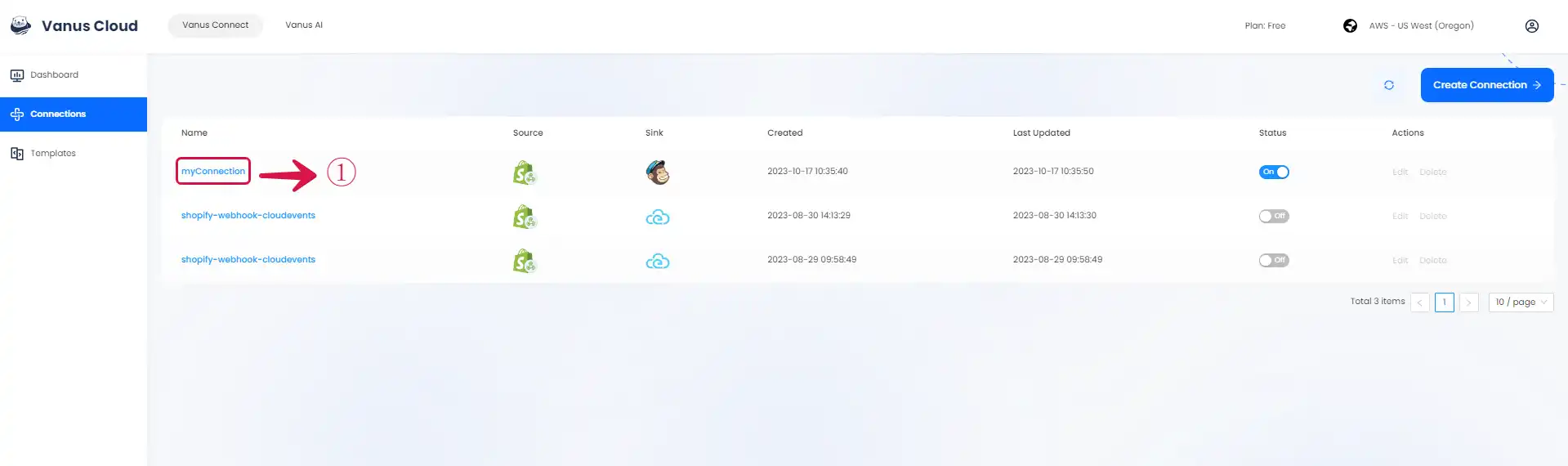
- Click on the connection name①.
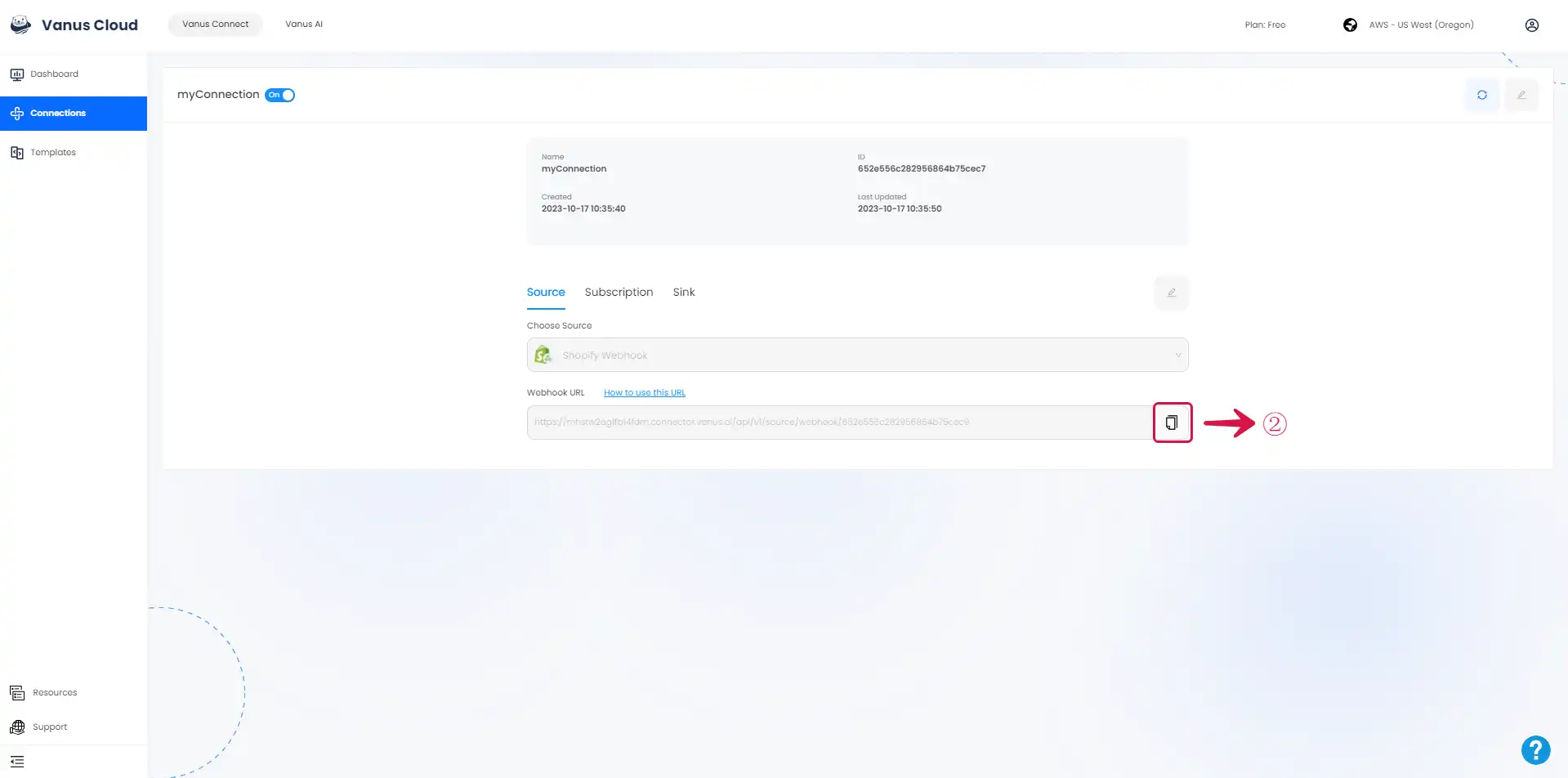
- Copy② the Webhook URL.
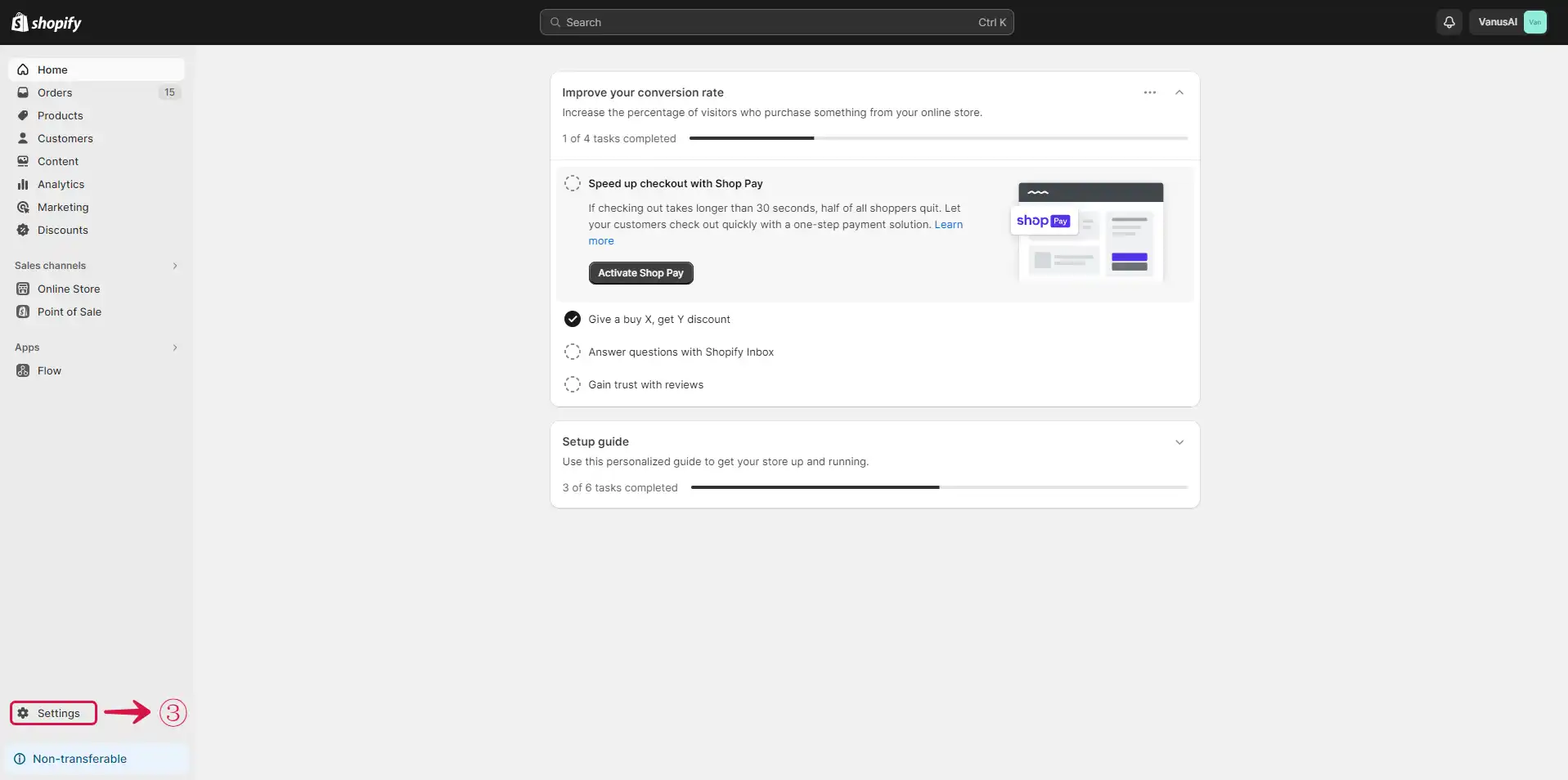
- Navigate to your Shopify Admin Dashboard and click on the Settings③ button.
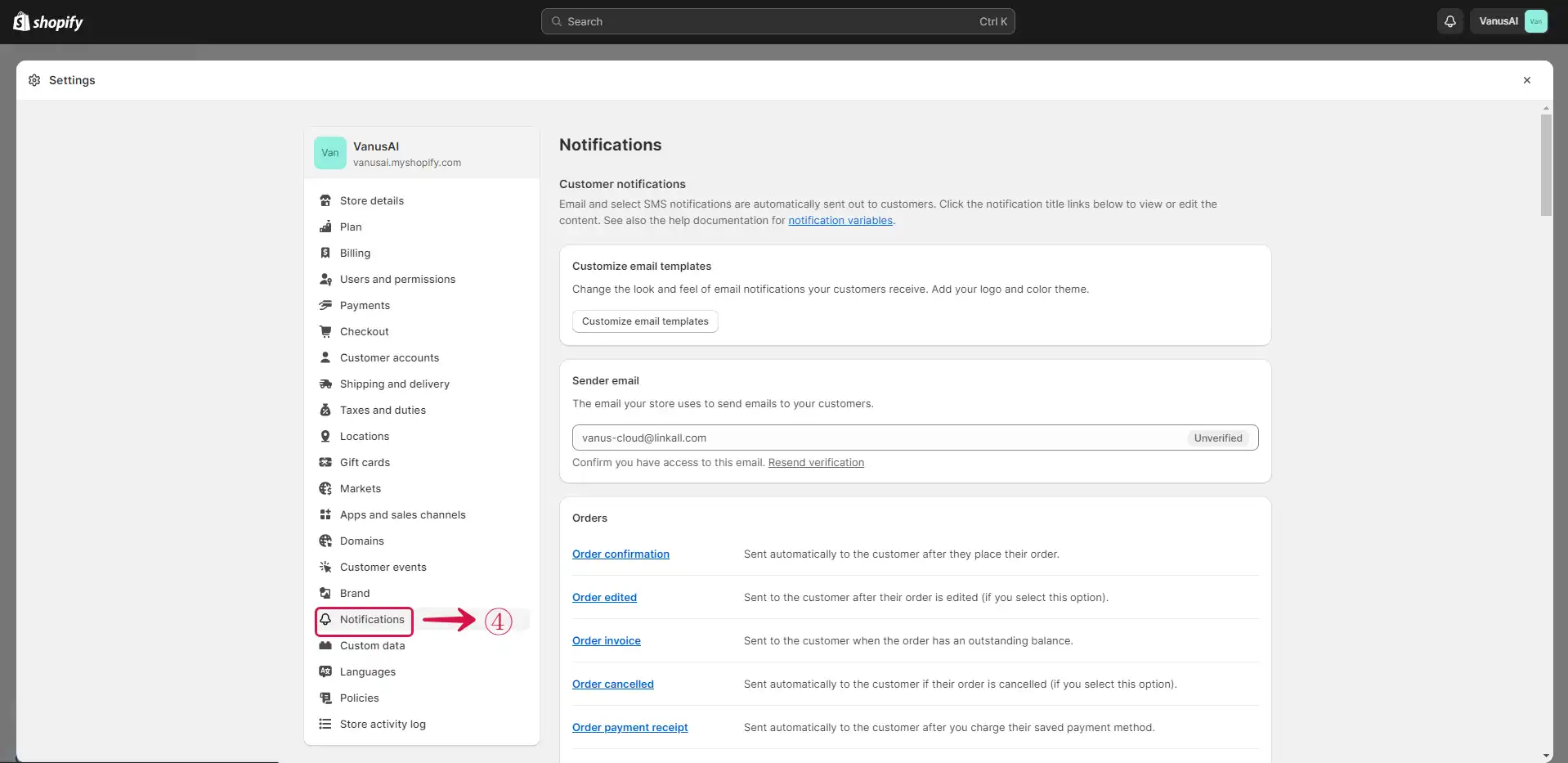
- Click the Notification④ menu on the sidebar.
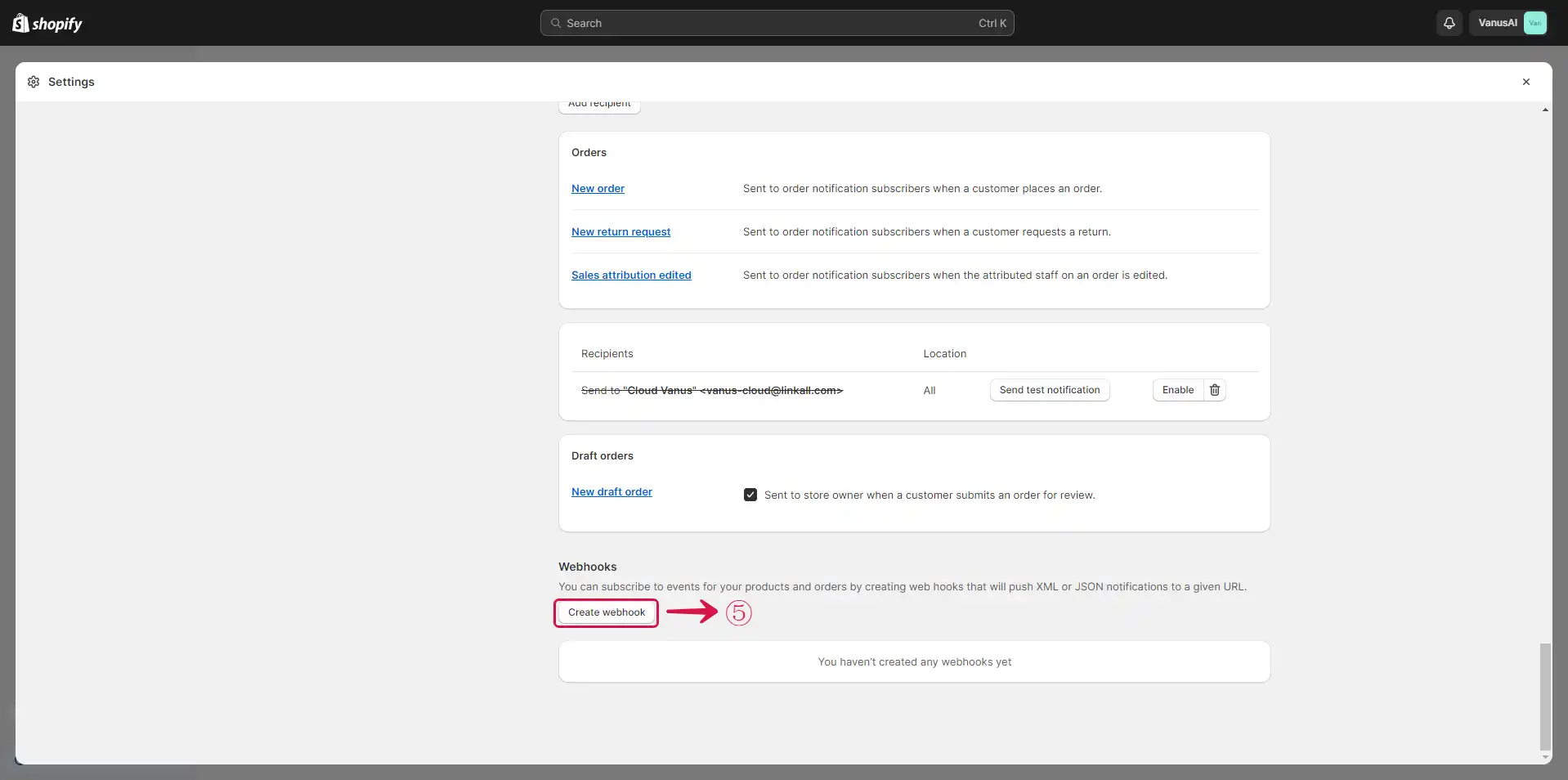
- Click on the Create webhook⑤ button.
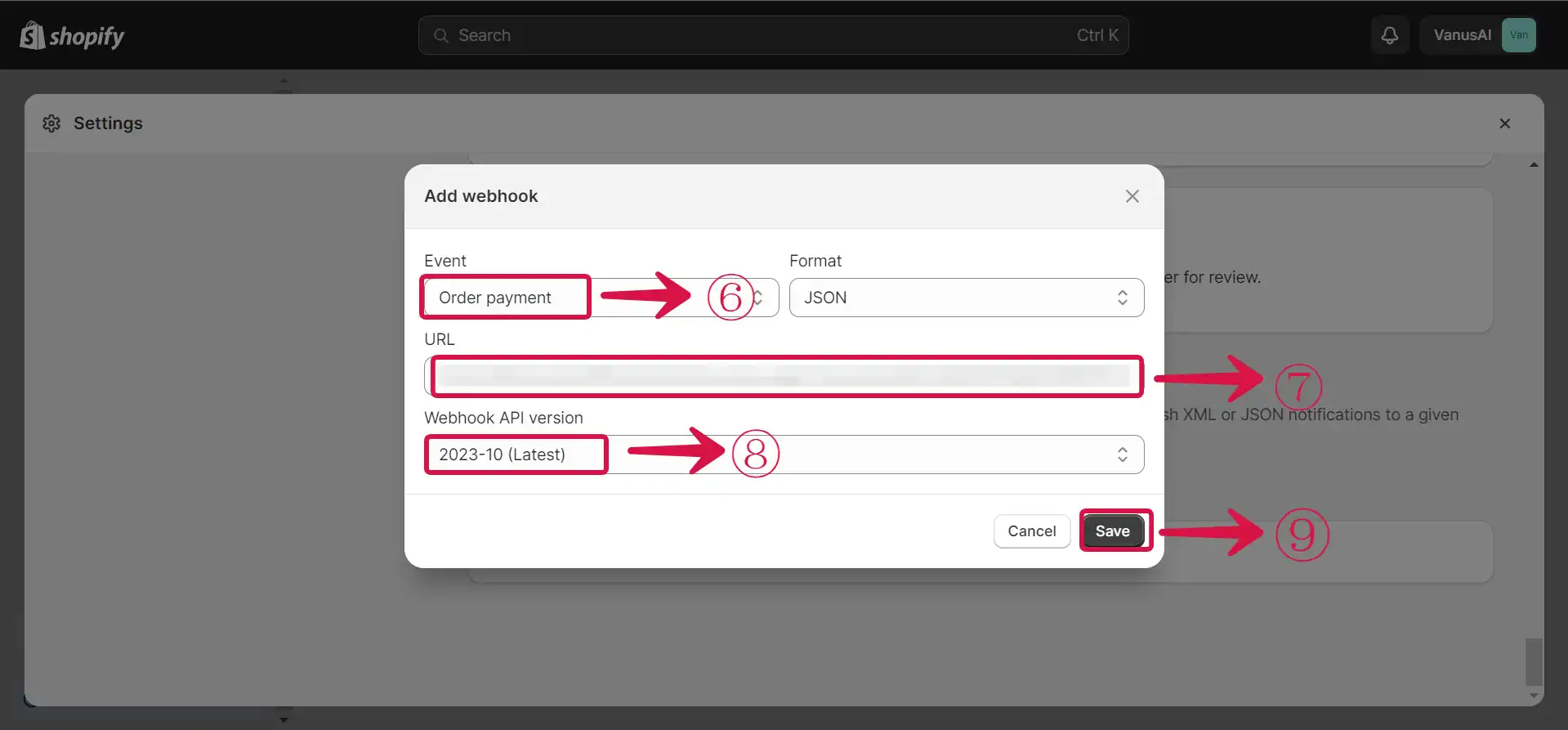
- Select the Event⑥, Paste the Webhook URL in the URL⑦ field, select the Webhook API version⑧, and click the Save⑨ button.
Result Display
When a user pays for a product in your Shopify Store, the Order is automatically added to as new row in Google Sheets.